Video Guide
(Note: To access a function, right-click the target disk or partition)
- Part #A. Resize, shrink, move, extend, and merge partitions without data loss (Resize BitLocker, Expand VMware disk included)
- Part #B. Delete partition, delete recovery partition, create new partitions, and partition a disk
- Part #C. Convert to GPT, FAT32 format, dynamic to basic, convert primary or logical
- Part #D. Clone disks/USBs: Clone to a larger disk (including OS), a smaller disk, or from MBR to GPT disk, convert MBR to GPT, fix disk full problem
A. Resize, Shrink, Move, Extend, and Merge Partitions

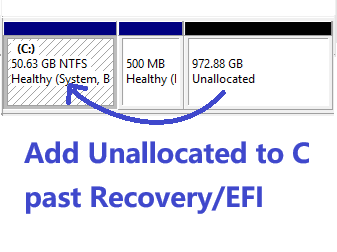 A1. Add unallocated space to C drive past blockers
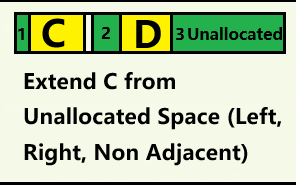 A1-1. Extend C using different unallocated spaces
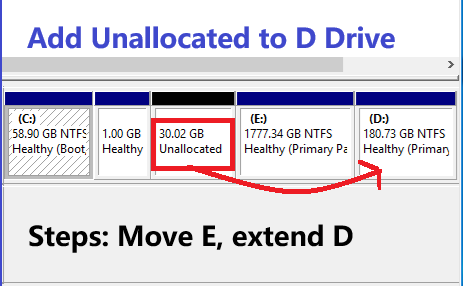 A1-2. Add unallocated spaces to D or any
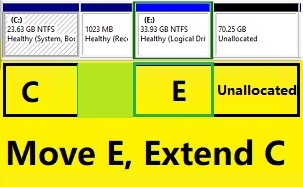 A1-3.Add non-contiguous unallocated space to C
 A2. Move partitions (including recovery) without data loss
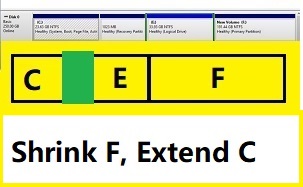 A2-1. Shrink F, move E, and extend C drive
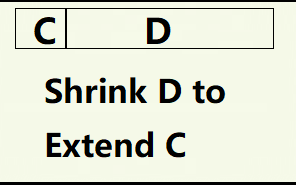 A2-2. Shrink D to expand C drive Win 11-XP
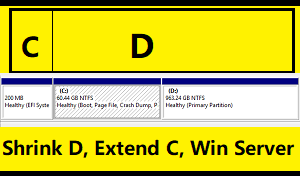 A2-3. Shrink D to expand C drive Win Server
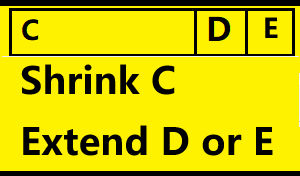 A3. Extend D or E from C (Shrink C, extend D/E)
 A4. Merge C and D or E drive without data loss
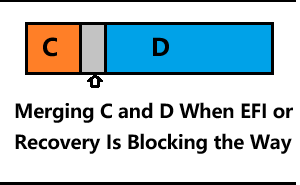 A5. Merge C and D blocked by EFI or Recovery
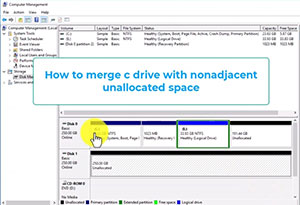 A6. Merge C drive with non-adjacent space
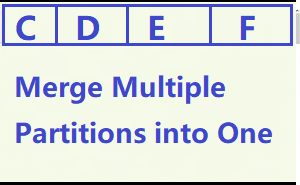 A7. Merge Several Partitions One without data loss
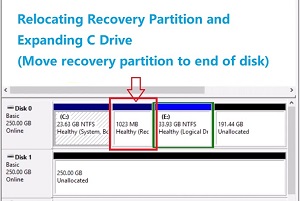 A8. Move recovery partition to expand the C drive
 A9. Move recovery to the end of disk
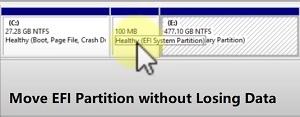 A10. Move EFI partition without losing data
 A11. Move EFI end of disk without losing data
 A12. Move partition without losing data
 A12-2. Move partition to another disk
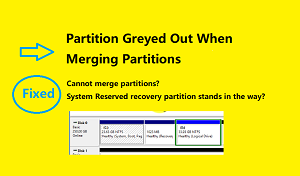 A13. Troubleshoot merge partitions option grayed out
 A14: Shrink Partition: Shrink C, create partition Server 2016-2022
 A15: Resize BitLocker: Shrink move extend encrypted partitions
 A16: Expand VMware disk, add unallocated space to C
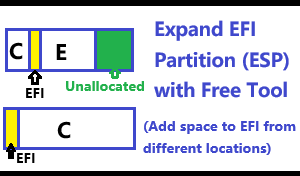 A17: Expand EFI with space from different locations
B. Delete Partitions and Create New Partitions
 B1. Delete Partition: How to delete the recovery partition
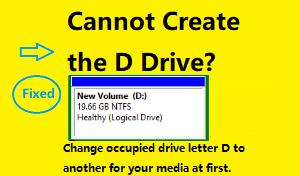 B2. Create Partition: How to create a new partition
 B3. Shrink C drive and create D drive: Two free methods
 B4: Partition a Disk: Vmware disk partition
C. Convert format, MBR, GPT, FAT32, NTFS etc.
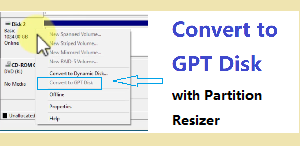 C1. How to convert MBR to GPT without data loss
 C2. Convert to FAT32: How to convert to FAT32 without data loss
 C3. Convert dynamic disk to basic (Do not convert RAID)
 C4. The volume size is too big for FAT32
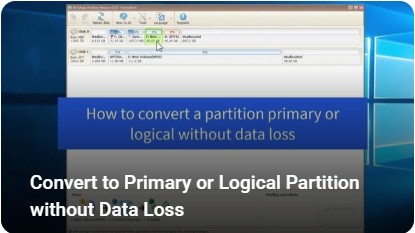 C5. Convert partition to logical or primary
D. Clone disk, migrate OS, copy partition, backup usb, disk etc.
 D1. Clone Disk to Larger: Upgrade or migrate to a larger HDD/SSD
 D2. Clone Disk to Smaller: How to clone to a smaller HDD/SSD
 D3. Clone OS Disk: Clone from MBR to GPT
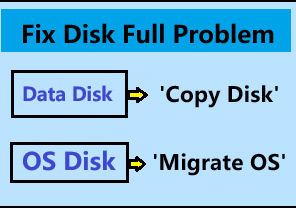 D4. Fix disk full problem (Data|OS)