How to Extend D or E Drive from C Drive in Windows (11, 10, 8, 7, XP, Server)
Want to increase the size of your D or E drive using free space from the C drive? This guide shows you the easiest and safest way to do it without losing data.
IM-Magic Partition Resizer helps you resize partitions by shrinking, moving, and extending volumes safely. It works on Windows 11, 10, 8, 7, Vista, XP, and Windows Server 2003–2025.
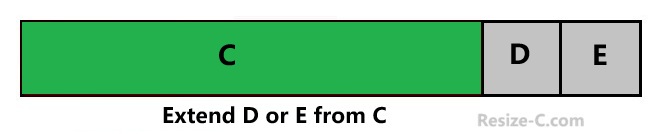
Quick Steps to Extend D or E Drive from C
Video: How to add space to D or E from the C drive, no data loss
For Windows 11/10/8/7 => Download Partition Resizer Free [100% Free]
For Windows Server 2025-2003 => Download Partition Resizer Server [Trial]
- Download and install IM-Magic Partition Resizer, then launch the software.
-
Shrink the C: drive:
Right-click C: → Select "Resize/Move" → Drag the right border to shrink it → Click OK.
This will create unallocated space. -
Extend D: drive (if target is D):
Right-click D: → Select "Resize/Move" → Drag the left border to use the unallocated space → Click OK → Click APPLY CHANGES. -
Extend E: drive (if target is E):
If layout is C: | Unallocated | D: | E:, first move D:
Right-click D: → "Resize/Move" → Drag the entire partition to the left → Click OK.
New layout: C: | D: | Unallocated | E:
Then extend E:
Right-click E: → "Resize/Move" → Drag the left border → Click OK → Click APPLY CHANGES.
Important Notes (Read Before You Start)
- Always back up important data before resizing partitions.
- This method does not require reinstalling Windows or apps.
- The process is designed to be safe with no data loss.
Why Disk Management Cannot Extend D or E Drive
Many users try Windows Disk Management, but it often fails in this situation.
Example:
Before: C: | D: | E:
After shrinking C: → C: | Unallocated | D: | E:
Problem:
Disk Management can only extend a partition if the unallocated space is directly on the right side of the target drive.
Since the unallocated space is on the left side of D:, the "Extend Volume" option will be greyed out.
Best Solution
Use IM-Magic Partition Resizer to:
- Extend partitions from left or right unallocated space
- Move partitions without data loss
- Migrate OS to another disk
- Clone disks or partitions for backup
- Convert disk types
What “Extend D Drive from C Drive” Really Means
This means taking unused space from the C: drive and adding it to the D: or E: drive—not extending the C: drive itself.
Things to Know Before You Extend D Drive
Before you proceed:
- Back up important data.
- Ensure there is enough free space on the C: drive.
- Check whether unallocated space is available.
- Note that Disk Management has limitations (it cannot easily move partitions).
Incorrect Method Provided by AI: Extending the D Drive Using Disk Management
Step-by-Step Guide Generated by AI (Incorrect for Windows 11/10)
- Press Win + X → Disk Management.
- Right-click the C: drive and select Shrink Volume.
- Enter the amount of space to shrink.
- This creates unallocated space.
- Right-click the D: drive.
- Click Extend Volume.
- Add the unallocated space.
✅ Although this is often suggested as the easiest built-in way to extend the D drive in Windows 11/10, it is incorrect in this scenario. Disk Management can only extend a volume when the unallocated space is directly adjacent to the right side of that volume. When you shrink the C: drive, the unallocated space is created to the right of C: and to the left of D:. As a result, the "Extend Volume" option for the D: drive will be greyed out.
Layout: C: | Unallocated | D:
Common Issues and Fixes
❌ Extend Volume Greyed Out
- Cause: Unallocated space is not adjacent to the target partition.
- Fix: Use partition software such as IM-Magic Partition Resizer.
❌ Cannot Shrink C Drive
- Disable hibernation.
- Temporarily turn off the page file.
- Alternatively, use IM-Magic Partition Resizer.
❌ Data Loss Risk
- Although IM-Magic Partition Resizer claims 100% rollback protection and no data loss, it is still recommended to back up your data before resizing partitions. You can use features like "Copy Disk" or the "Migrate OS Wizard" for backup.
Related info
Add space from C to D, Add space from C to E?
If you want to increase space of D or E from the C drive, for example, C 800GB, D 200GB, shrink C, and extend D safely with IM-Magic Partition Resizer.
Increase partition size E from C drive
If you want to increase partition size on volume D from C drive, you can shrink C first, and then extend D into unallocated space using IM-Magic Partition Resizer. For example: C, D -> C, unallocated, D -> C, and a larger D
More Related Articles You May Like
Related Product
- IM-Magic Partition Resizer Server - Partition space redistributing software that works for Windows Server 2003-2025.