You Cannot Create a New Volume in This Unallocated Space: Causes and Fixes
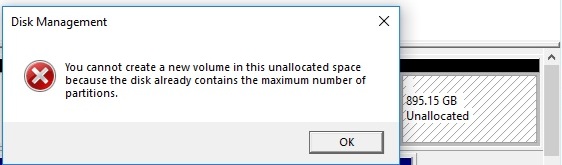
If you’re trying to partition your hard drive in Windows and encounter the error message "you cannot create a new volume in this unallocated space", it can be frustrating. This issue prevents users from creating new partitions on certain areas of their hard drive. Fortunately, understanding the causes and solutions can get your system back to normal quickly.
Common Causes and Fixes
- MBR Partition Limit: Windows MBR disks support a maximum of 4 primary partitions.
- Unallocated Space is Too Small: Sometimes the space is smaller than Windows requires.
- Disk Type Limitations: Dynamic or GPT disks may have restrictions.
- File System Corruption or Disk Errors: Disk metadata issues can prevent new volumes.
For Windows 11/10/8/7 => Download Partition Resizer Free [100% Free]
For Windows Server 2025-2003 => Download Partition Resizer Server [Trial]
How to Fix This Issue
1. Check Your Partition Style
- Press
Win + X→ select Disk Management. - Right-click your disk → select Properties → Volumes tab → check Partition style.
- If it’s MBR and you already have 4 primary partitions, you can either convert one primary partition to logical or convert the disk to GPT (backup required). Or you may directly create a partition using IM-Magic Partition Resizer without no changes.
2. Use Disk Management Properly
- Open Disk Management.
- Right-click the unallocated space → choose New Simple Volume.
- Follow the wizard and ensure the unallocated space is large enough.
3. Use Third-Party Partition Tools
Tools like IM-Magic Partition Resizer can overcome Windows’ native limitations.
4. Check for Disk Errors
Open Command Prompt as Administrator and run:
chkdsk X: /fReplace X with the drive letter.
5. Convert MBR to GPT (if necessary)
Backup your data first. Use Windows Disk Management or third-party software to convert the disk.
Conclusion
The error "you cannot create a new volume in this unallocated space" is usually caused by partition limits, disk type restrictions, or disk errors. By checking your partition style, using proper tools, and repairing errors, you can create new volumes safely. Third-party partition tools are often the easiest solution without losing data.
More Related Articles You May Like
Related Product
- IM-Magic Partition Resizer Server - Partition space redistributing software that works for Windows Server 2003-2025.