Convert a Basic Disk to a Dynamic Disk in Windows
Converting a basic disk to a dynamic disk in Windows allows advanced storage features such as spanned, striped, and mirrored volumes. However, this change affects how your disk is managed, so it should be done carefully.
Note: If your goal is disk or partition expansion or setting up RAID, we recommend cloning to a larger disk rather than converting to a dynamic disk, as RAID is intended for advanced users. (You can use IM-Magic Partition Resizer to clone your disk to another larger one)
Currently, IM-Magic Partition Resizer v7.9 does not offer conversion to dynamic disks.
Before You Start
- Back up your data: Conversion usually keeps files intact, but errors (power loss, system failure) can cause data loss. (Free tool IM-Magic Partition Resizer has 'Copy Disk' and 'Copy Partition' that helps make a full backup your disk or partition)
- Check compatibility: Dynamic disks are not supported on Windows Home editions or external USB drives.
- Understand reversibility: Converting back to basic requires deleting all volumes, which erases data.
- Ensure free space: At least 1 MB of unallocated space is required.
Method 1: Using Disk Management
Note: If the disk contains a system reserved or recovery partition, the conversion may fail. In some cases, you may need to remove the recovery partition using Diskpart (with the delete partition override command) or a third-party partition tool such as IM-Magic Partition Resizer. Be aware that deleting this partition may remove recovery options.
Steps
- Open Disk Management: Press Win + R, type diskmgmt.msc, and press Enter. Or right-click the Windows Start icon, and select 'Disk Management'.
- Locate your disk in the lower panel (e.g., Disk 0, Disk 1) and confirm it is labeled Basic.
- Right-click the disk label (left side, not the partition) and select Convert to Dynamic Disk.
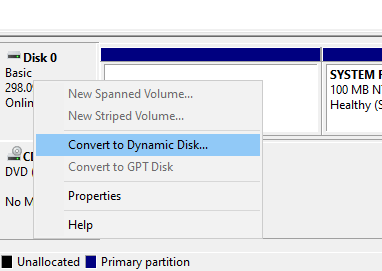
- Select the disk(s) you want to convert and click OK.
- Click Convert and confirm the warning.
- Wait for the process to complete. The disk will now show as Dynamic.
Error messages when cannot convert disk to dynamic
- Turn off BitLocker: Go to Control Panel > System and Security > BitLocker Drive Encryption.
- Select the affected drive, click "Turn off BitLocker" and wait for decryption to complete.
- After decryption finishes, retry the disk conversion.
- Removable drives (USB flash drives, external USB hard disks).
- Drives connected via IEEE 1394 (FireWire) or certain firmware interfaces.
- Internal laptop hard disks (by design to prevent accidental disconnection).
- Disks with sector size larger than 512 bytes (e.g., some 4K native Advanced Format drives).
→ There is no software workaround; use a different disk type or configuration.
- Use Disk Management or a reliable partition tool (e.g., AOMEI, EaseUS, MiniTool).
- Shrink or delete the last partition on the disk to create at least 1 MB of unallocated space at the end.
- After freeing the required space, try the conversion again.
- Press Win + R, type
sysdm.cpland press Enter. - Go to the Computer Name tab → click Change.
- Enter a new English-only computer name (e.g., "WORKSTATION-PC"). Click OK and restart your computer.
- Back up all important data first – conversion usually requires cleaning the disk or using third-party tools.
- Use Windows Disk Management (requires deletion of all volumes) or professional tools like EaseUS Partition Master or AOMEI Partition Assistant for data‑preserving conversion.
- Once converted to GPT, dynamic disk features become available (if other conditions are met).
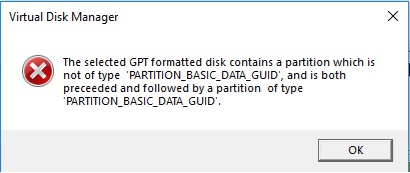
- Backup all data residing on unrecognized or foreign partitions.
- Use Partition Resizer or the DiskPart command‑line tool to delete the unrecognized partition(s).
- After removing the incompatible partition(s), retry disk conversion.
Note: This will cause the System Restore to become disabled or non-functional in Windows.
📌 Important: Windows edition limitations
🛠️ Alternative solutions & professional tools
If standard methods fail or you want to avoid data loss risks, specialised partition managers offer non‑destructive conversions and advanced troubleshooting. Popular choices include:
- EaseUS Partition Master – can convert MBR to GPT or basic to dynamic without data loss.
- AOMEI Partition Assistant – comprehensive disk conversion features.
- MiniTool Partition Wizard – intuitive interface for dynamic disk management.
These tools can often bypass native Windows restrictions or provide detailed error diagnostics.
More Cases When Disk Management Cannot Convert Disk to Dynamic
Disk Management may fail to convert a basic disk to a dynamic disk in several situations:
- Removable Disk: USB drives, SD cards, and other removable media are not supported.
- No Free Space: At least 1 MB of unallocated space is required at the end of the disk.
- Disk Errors: Corrupted partition tables or bad sectors can prevent conversion. (Use Defragment or Check Partition in Partition Resizer to repair)
- Write Protection: Read-only or write-protected disks cannot be modified.
- Unsupported Partitions: OEM, Linux, or unknown partition types may block conversion.
- External Drive Limitations: Some USB hard drives do not support dynamic disks.
- Multi-Boot Configuration: Disks used by multiple operating systems may be restricted.
- Virtual Disk Restrictions: Certain virtual machine disk formats may not allow conversion.
- Encryption Enabled: BitLocker or other encryption software can interfere.
- Administrative Policies: Group Policy or security software may block the operation.
- Driver or Hardware Issues: Outdated storage drivers or controller problems can cause failure.
- Storage Spaces or RAID: Disks already managed by RAID or Storage Spaces cannot be converted directly.
Method 2: Using Diskpart (Command Line)
Steps
- Open Command Prompt as Administrator.
- Type diskpart and press Enter.
- Type list disk to display available disks.
- Type select disk 1 (replace 1 with your disk number).
- Type convert dynamic and press Enter.
- Type exit to close Diskpart.
After Conversion
- The disk type changes from Basic to Dynamic.
- Partitions become volumes.
- You can now create spanned, striped, or mirrored volumes.
- The file system (e.g., NTFS) remains unchanged.
Important Considerations
- Boot/system disks: Converting the OS disk may cause boot issues on older systems.
- Multi-boot systems: Other operating systems may not recognize dynamic disks.
- External drives: Dynamic disks are not portable between systems.
Troubleshooting
- Option is greyed out: Disk may be removable, already dynamic, or lacking free space.
- Conversion fails: Check disk health and ensure no system errors are present.
- Disk shows as foreign: Import it using Disk Management.
Convert Back to Basic Disk
You may use the free Partition Resizer to convert a dynamic disk to a basic disk without losing data (RAID is not supported; do not convert a RAID dynamic disk, or data loss may occur). Alternatively, you can use Disk Management to delete all partitions and then convert the disk to a basic disk.
- Back up all data.
- Delete all volumes on the dynamic disk.
- Right-click the disk and select Convert to Basic Disk.
- Recreate partitions and restore data.
Also read: How to convert dynamic to basic
When to Use Dynamic Disks
- Use for advanced features like software RAID or combining multiple disks.
- Avoid for simple storage, external drives, or maximum compatibility needs.
Recommendation
For most users, basic disks are recommended because they are simpler, more compatible, and easier to recover. Use dynamic disks only when you specifically need advanced storage features.
Related Product
- IM-Magic Partition Resizer Server - Partition space redistributing software that works for Windows Server 2003-2025.