How to Add Unallocated Space to C Drive When Blocked by Recovery/EFI (Free Tool)
Problem: Your C: drive is low on space. You have unallocated space on the same disk, but the "Extend Volume" option is grayed out in Windows Disk Management. This happens because a Recovery or EFI System Partition sits between C: and the unallocated space, and Windows cannot move partitions.
Solution: Use the free tool IM-Magic Partition Resizer to move the blocking partition out of the way, then extend C: into the unallocated space without losing data. (Windows VMware OS fully supported.)
Note: Although IM-Magic Partition provides 100% no-data-loss and rollback protection during resizing or moving partitions, we strongly recommend backing up your disk first for added safety, as 'Copy Disk' and 'Migrate OS Wizard' offer backup for data and OS disks within the software.
Video: How to extend C drive using unallocated space that sits behind Recovery and EFI partitions.
For Windows 11/10/8/7 => Download Partition Resizer Free [100% Free]
For Windows Server 2025-2003 => Download Partition Resizer Server [Trial]
Note: If the Recovery partition becomes Not formatted or unformatted, it cannot be moved or resized. In this case, please backup the OS and the Recovery to another disk using 'Migrate OS Wizard', disable the current Recovery, delete the Recovery, expand the drive, and then recreate the Recovery. (This may happen to some Windows Server OS.)
Major Steps with IM-Magic Partition Resizer
Single blocker (Recovery or EFI): Move the blocker → Expand.
Example: C: | Recovery | Unallocated → Move Recovery, then expand C:.
Multiple blockers: First move the one adjacent to unallocated space, then move them one by one until the unallocated reaches the target C: drive → Finally expand C:.
Example: C: | EFI | Recovery | Unallocated → Move Recovery, move EFI, then expand C:.
Example: C: | EFI | Recovery | D | Unallocated → Move D, move Recovery, move EFI, then expand C:.
Example: EFI | C: | Reserved | Recovery | D | Unallocated → Move D, move Recovery, move Reserved, then expand C:.
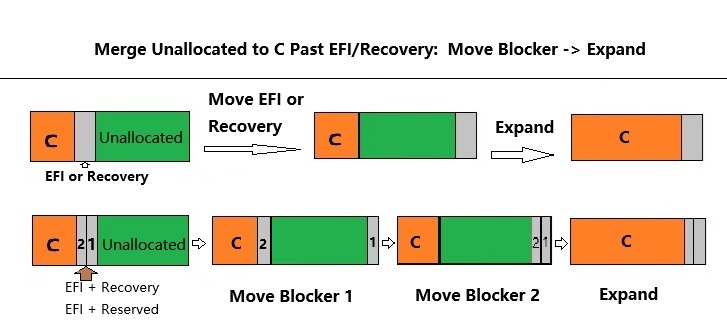
Note: To merge unallocated space into C:, move system partitions (EFI, Recovery, Reserved) one by one, starting with the one adjacent to unallocated space. Move data partitions the same way. Remember: moving a partition always requires adjacent unallocated space.
Common Disk Layouts & How to Fix Each
Below are the most frequent scenarios and the exact steps to fix them with IM-Magic Partition Resizer.
Case 1: C: | Recovery | Unallocated (Most Common)
Layout: [C: Drive] [Recovery Partition] [Unallocated Space]
- Fix: Move the Recovery partition to the right end of the unallocated space, making the unallocated space adjacent to C: .
- Steps:
- Right-click the Recovery partition → Resize/Move.
- Drag the entire Recovery partition to the right until it sits at the end of the unallocated space. Click OK.
- Right-click C: → Resize/Move → drag the right border to fill the freed space. Click OK.
- Click Apply. The computer may restart to complete the move .
Case 2: C: | EFI System Partition | D: (or E:) | Unallocated
Layout: [C: Drive] [EFI Partition] [Data Partition] [Unallocated Space]
- Fix: Move partitions one by one from right to left. You need adjacent unallocated space to move a partition.
- Steps:
- Right-click the data partition (D: or E:) → Resize/Move → drag it to the right into the unallocated space. Click OK.
- Right-click the EFI partition → Resize/Move → drag it to the right (now the unallocated space is adjacent). Click OK.
- Right-click C: → Resize/Move → drag its right border to fill the adjacent unallocated space. Click OK.
- Click Apply. Moving the EFI partition will require a system reboot.
Case 3: C: | Data Partition (D:) | Unallocated ( → No Recovery/EFI)
Layout: [C: Drive] [D: Drive] [Unallocated Space]
- Fix: Move the D: partition to the right, then extend C:.
- Steps:
- Right-click D: → Resize/Move → drag the entire D: partition to the right into the unallocated space. Click OK.
- Right-click C: → Resize/Move → drag its right border to the right to absorb the new unallocated space. Click OK.
- Click Apply. This operation usually completes without a reboot.
Case 4: No Unallocated Space Exists (Shrink Another Partition First)
Layout: [C: Drive] [D: Drive] (No free space on the disk)
- Fix: Shrink a large partition (usually D:) to create unallocated space, then move partitions as needed.
- Steps:
- Right-click D: → Resize/Move.
- Drag the left border of D: to the right to shrink it, creating unallocated space before D: . Click OK.
- The layout is now
[C:] [Unallocated] [D:]. Since unallocated is directly after C:, right-click C: → Resize/Move → drag the right border to extend into it. Click OK. - Click Apply.
🔧 Universal Application – Works for Any Blocker:
The methods described in Case 1 (C, Recovery, Unallocated) are not limited to Recovery partitions. They work identically when the blocker is:
- EFI System Partition – on GPT/UEFI systems
- MSR Reserved Partition – on GPT systems
- Recovery Partition – on both GPT and MBR systems
- Any other partition – that sits between C: and D:
Simply substitute the blocker name in the steps above. The workflow remains: Back up (optional) → Move blocker → Expand → Click APPLY.
Important Rules for Moving Partitions with IM-Magic Partition Resizer
- Adjacent unallocated space is required to move a partition. You cannot "push" partitions; you must move them one by one into adjacent free space .
- Moving the EFI partition always requires a reboot to update firmware references .
- Extending C: to the right (right handle only) usually does NOT require a reboot because the start sector remains unchanged .
- Backup your data before any partition operation .
- 100% Safe Rollback: IM-Magic Partition Resizer includes rollback protection. If a power outage or crash occurs during resizing, it automatically restores the previous state.
Why Choose IM-Magic Partition Resizer?
- Free for Windows 11/10/8/7.
- Can move Recovery, EFI, and OEM partitions that Windows Disk Management cannot.
- Works with NTFS and FAT32 partitions.
- Supports both MBR and GPT disks.
- Includes power-off and rollback protection.
- VMware Windows OS fully supprted.
- No OS reinstall, no app reinstall, no OS break down (Requires a reboot only when EFI has been moved, or the start sector of C has been changed, or when a drive contains unmovable files like Page File. If there is a busy mark listed in the progress waiting, it means that needs a reboot.)
Why Windows Can't Extend C: Drive
Windows Disk Management can only extend a partition into adjacent unallocated space immediately to its right . If any partition (Recovery, EFI, OEM, or another data partition) is in between, the option is disabled.
Final Thoughts
When your C: drive cannot be extended because a Recovery or EFI partition is in the way, IM-Magic Partition Resizer provides a straightforward, free solution. By moving the blocking partition, you can reclaim the unallocated space without reformatting or reinstalling Windows.
Different Disk Layout? Email Us to Get A Tailored Guide
If you have a different disk layout and do not know how to use Partition Resizer for disk partition, email us to get a similar tailored video guide. (support#resize-c.com)
This page is created for user Mr. Rolando who wants to know how to add unallocated to C drive that is seperated by Recovery partition. His machine is currently running VMware / Windows OS.
Edition: Windows Server 2022 Datacenter
Version: 21H2
Installed on 7/19/2023
OS build 20348.5024
"The server has a total of 4 volumes. The partitions I want to increase is the Disk 0 that has the OS. I want to increase the Disk 0 / OS drive size. I expanded in the VMware side but not able to extend. I want to make sure there will be no issues with the OS boot, no loss of data, no reinstalling or breaking the system."
Answer: There is no issue with OS boot, no data loss, no reinstalling or breaking the system. However if it's the EFI partition moving involved in the process, an OS reboot is required. The OS reboot time usually take a few seconds to minutes to finish, depending on how much data are involved.
Recommended article: How to expand VMware disk partition