Move EFI System Partition to Extend C Drive
To move EFI system partition to extend C drive, disk layout rules must be followed. There must be adjacent unallocated space next to the EFI partition. Shrinking or deleting a partition can generate unallocated space. This guide explains the correct partition order and how to do it safely using IM-Magic Partition Resizer (Free).
Why EFI Partition Blocks Extending C Drive
Windows can only extend a partition into adjacent unallocated space.
If the EFI system partition sits between C drive and free space, extension fails.
Move EFI Partition and Extend C Drive with IM-Magic Partition Resizer
Free Tool: IM-Magic Partition Resizer
IM-Magic Partition Resizer supports EFI/GPT disks and allows safe partition movement without reinstalling Windows.
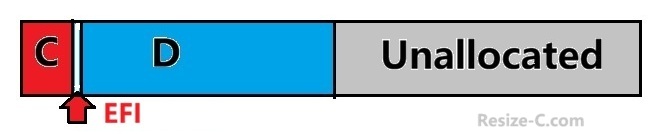
Before: 👉 C: | EFI | D (or E) =>Target:👉 C: | Unallocated | EFI | D (or E)
Video: How to move EFI partition to extend C or end of disk
For Windows 11/10/8/7: Download Partition Resizer Free [100% Free]
For Windows Server 2025-2003: Download Partition Resizer Server [Trial]
Common Disk Layout Problem
Before:
👉 C: | EFI | D: | Unallocated (The D can be E:, depending on what drive letter your PC has)
In this layout, the C drive cannot be extended because the EFI partition blocks the unallocated space. Windows Disk Management cannot move unallocated space, but Partition Resizer can move the partitions in between.
Move the partition adjacent to the unallocated space first using Partition Resizer. Move D first, and then move the EFI.
If your disk layout is different, learn from the following cases.
👉 C: | EFI | D: | E | Unallocated (Move E first, move D, move EFI and extend C)
👉 C: | EFI | D: | E (Shrink/Delete D, move EFI and extend C; option: Shrink or delete E, move D, move EFI, and extend C)
Key Rule: Adjacent Unallocated Space Is Required For Moving A Partition
⚠️ Unallocated space is required for moving a partition, including the EFI system partition.
- ✔ The unallocated space must be adjacent
- ✔ A partition can only move into unallocated space
- ✔ Shrinking or deleting a partition creates unallocated space
Partition moving can only be done in orders. Move the first one which is adjacent to the unallocated space, and then the next.
Before: C | EFI | D | E | Unallocated
Steps: Move E first since it's adjacent to the unallocated space. Later, move D, move EFI and then extend C.
Step-by-Step Instructions
- Download, and launch IM-Magic Partition Resizer
- Right click the D or E drive, shrink or delete the D partition to create unallocated space (Choose Resize option to shrink D, or choose Delete Partition option to delete D, please backup D first)
- Right-click the EFI system partition
- Choose Resize/Move and move EFI rightward Click OK.
- Right-click the C drive, choose 'Resize Partition' and extend it into adjacent unallocated space. Click OK.
- Apply changes
After:
👉 C: | Unallocated | EFI | D (or E)
✅ C drive is successfully extended.
Also read: How to move a partition or how to move partition to extend C
How to Create Unallocated Space
Option 1: Shrink D Partition (Recommended)
- 🔹 Keeps D partition data
- 🔹 Creates unallocated space next to EFI
After shrinking D, the layout becomes:
👉 C: | EFI | Unallocated | D:
Option 2: Delete D Partition
- ⚠️ Removes all data on D
- ✔ Creates large unallocated space
After deleting D:
👉 C: | EFI | Unallocated
FAQ
Can Windows Disk Management move EFI partition?
❌ No. Windows Disk Management cannot move EFI system partitions.
Is it safe to move EFI partition?
Yes, when using IM-Magic Partition Resizer, boot files are preserved. OS restart is required once EFI partition is invovled.
Conclusion
To move EFI system partition to extend C drive, remember:
- ✔ Adjacent unallocated space is mandatory
- ✔ Shrink or delete D to create space
- ✔ Move EFI, then extend C
Using the free IM-Magic Partition Resizer makes the process safe, fast, and Windows-friendly.
Related Product
- IM-Magic Partition Resizer Server - Partition space redistributing software that works for Windows Server 2003-2025.