How to Move a Partition or Volume in Windows 10 and Windows 11
Quick answer: Windows cannot move partitions or volumes by itself. To move a partition or volume safely in Windows 10 or Windows 11, you need software like IM-Magic Partition Resizer.
Table of Contents
- What Does It Mean to Move a Partition or Volume
- How to Move a Partition/Volume with a Free Tool Partition Resizer (Video)
- Windows Disk Management vs IM-Magic Partition Resizer
- How to Move a Partition to Extend the C Drive
- How to Move a Partition to the Left
- How to Move a Partition to the Right
- How to Move a Partition to the End of Disk
- How to Move a Partition to Another Disk
- How to Move a Volume in Windows 10 and Windows 11
- People Also Ask: Common Questions
- Summary
What Does It Mean to Move a Partition or Volume🔁
Moving a partition or volume means changing its position on a disk without deleting data. This is often required when unallocated space is not located next to the partition you want to extend. IM-Magic Partition Resizer can move a volume without losing data when there is adjacent unallocated space, or you may use it to move the volume to another hard disk by cloning the volume.
Before diving into the steps, it’s important to understand the terminology.
- Partition: A logically divided section of a physical hard drive.
- Volume: A formatted partition that the operating system can use to store data.
Although partition and volume are slightly different terms, most people mean the same thing when they ask how to move a partition or how to move a volume. Usually, they are trying to do one of the following:
- Move it to a different place on the disk 📍
- Adjust how disk space is shared between partitions ↔️
- Move empty (unallocated) space next to a specific partition ➡️
- Make room for a system update or a new operating system 💾
⚠️ Note: Windows does not natively support physically moving partitions to different locations on the disk, but third-party tools make this possible.
How to Move a Partition in Windows 10/11 with a Free Tool Partition Resizer
Moving a partition is easy using free tool IM-Magic Partition Resizer. Unallocated space is required when moving a partition. When the unallocated space is available, right click the adjacent partition, choose RESIZE/Move to move the partition safely without losing data. If there is no unallocated space, you may shrink a large volume or prepare another HDD/SSD to clone the volume.
Video: How to move a partition using IM-Magic Partition Resizer
For Windows 11/10/8/7 => Download Partition Resizer Free [100% Free]
For Windows Server 2025-2003 => Download Partition Resizer Server [Trial]
How to move partition Windows 10/11 using IM-Magic Partition Resizer: Right click the volume, choose "Resize/Move", and move the volume left or right, click OK. (Adjacent unallocated space is required for moving a partition. You may create unallocated space by shrinking/deleting a volume or you may clone the volume to another HDD/SSD)
Windows Disk Management vs IM-Magic Partition Resizer
| Feature | Windows Disk Management | IM-Magic Partition Resizer |
|---|---|---|
| Move partition/volume | No | Yes |
| Extend C drive(NTFS) with adjacent unallocated space | Yes (must be adjacent at right) | Yes (any location) |
| Extend C drive(FAT) | NO | Yes (any location) |
| Copy partition | No | Yes |
| Migrate OS to another disk | No | Yes |
| Clone disk to another HDD/SSD | No | Yes |
| User-friendly interface | Basic | Intuitive drag-and-drop |
| Download | Download Win 11-7 (100% Free) Download Win Server (Free Demo) |
How to Move a Partition to Extend the C Drive
Quick answer: To extend the C drive, you must first move the partitions between C and the unallocated space using IM-Magic Partition Resizer.
Step 1: Identify Your Disk Layout
Check how partitions are ordered on your disk. The steps depend on where the unallocated space is located.
Step 2: Follow the Matching Scenario
Scenario 1:
➡️ C | Recovery / EFI | D | Unallocated
Move partition D, then move the Recovery / EFI partition, and finally extend the C drive.
Scenario 2:
➡️ C | Recovery / EFI | D | E
Shrink D or E to create unallocated space, move D, move Recovery / EFI, and then extend C.
Scenario 3 (Two Disks):
🖥 Disk 1: C | Recovery / EFI | D | E
🖥 Disk 2: H | J
To move partition D to Disk 2, first shrink H or J to create unallocated space larger than the total storage capacity than the D, copy D to Disk 2, delete the original D, and rename the copied partition.
Note: Moving the Recovery or EFI partition alone to another disk is not recommended. Use the Migrate OS Wizard to clone the entire system disk instead.
Step 3: Move the Partition Using IM-Magic Partition Resizer
- Install IM-Magic Partition Resizer
- Run the program as administrator
- Right-click the partition you want to move
- Select Resize/Move
- Drag the partition left or right to change its position
- Click OK and then Apply
Also read: How to move a partition to extend C
How to Move a Partition or Volume to the Left
Video: How to move a volume to the left or right without losing data
For Windows 11/10/8/7 => Download Partition Resizer Free [100% Free]
For Windows Server 2025-2003 => Download Partition Resizer Server [Trial]
Example layout: C, D, Unallocated Space, E
Steps:
- Right-click the E partition in Partition Resizer and select Resize/Move.
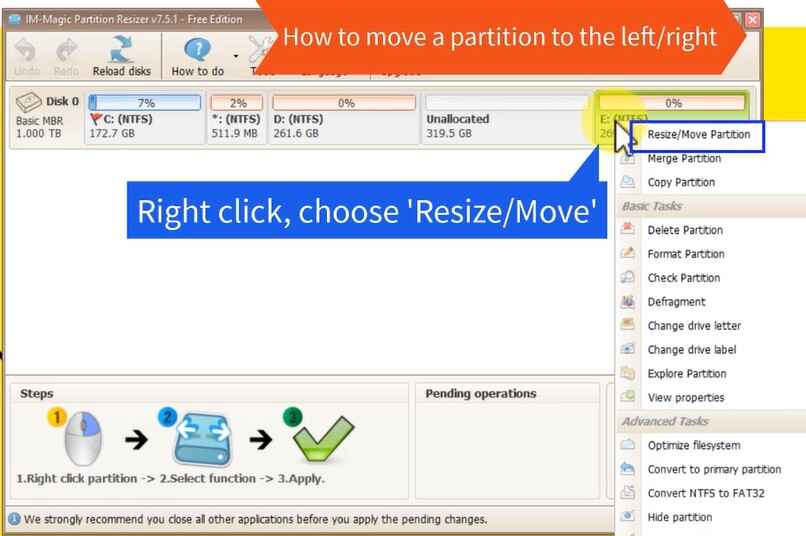
- When the cursor changes to cross arrows, drag the entire E partition to the left.
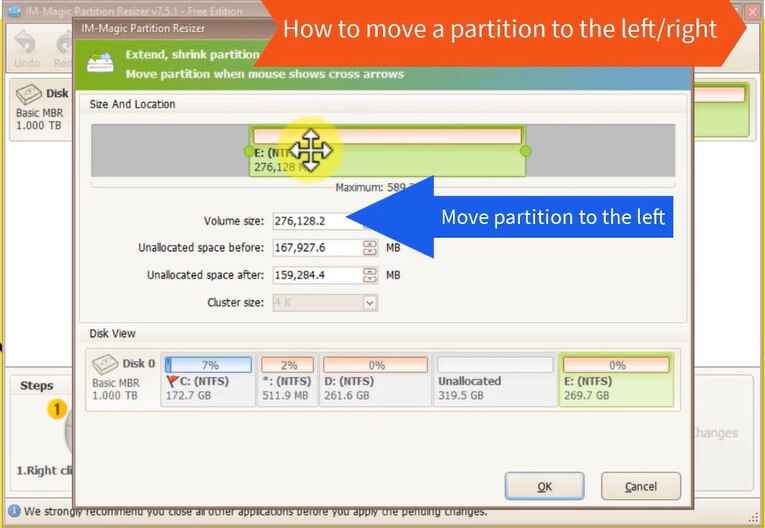
- Click OK to confirm the moving partition to the left.
- Click Apply Changes to move the partition.
Note: You can queue additional operations before clicking Apply Changes. All changes will be applied at the same time.
How to Move a Partition or Volume to the Right
Example layout: C, D, Unallocated Space
Steps:
- Right-click the D partition in Partition Resizer and choose Resize/Move.
- When the cursor changes to cross arrows, drag the entire D partition to the right.
- Click OK to confirm.
- Click Apply Changes to complete the operation.
Note: If you plan to perform more actions, you can do them first and then click Apply Changes once to apply everything together.
How to Move a Partition or Volume to the End of the Disk
(This has been illustrated in the first video on this page)
Example layout: C, D, E, Unallocated Space
Task#1: Move E to End of Disk; Task#2: Move D to End of Disk
Steps for Task#1:
- Right-click the partition you want to move (for example, E) in Partition Resizer and select Resize/Move.
- When the cursor changes to cross arrows, drag the entire partition all the way to the right, toward the end of the disk.
- Click OK to confirm the change.
- Click Apply Changes to move the partition to the end of the disk.
Note: If there are other partitions after the target partition, you may need to move them first so that unallocated space is available at the end of the disk.
Steps for Task#2:
- Copy E to another disk, Delete E (Please copy E to another place for backup, and then delete E). When the E drive is gone and becomes the unallocated space, repeat the Task#1 steps, which will be illustrated in the following.
- Right-click the partition you want to move (for example, D) in Partition Resizer and select Resize/Move.
- When the cursor changes to cross arrows, drag the entire partition all the way to the right, toward the end of the disk.
- Click OK to confirm the change.
- Click Apply Changes to move the partition to the end of the disk.
How to Move a Partition or Volume to Another Disk (HDD/SSD)
Video: How to move a partition to another disk (Data volume, EFI/Recovery, or the C drive)
Partitions and volumes cannot be moved directly from one disk to another. To place a partition on a different HDD or SSD, you need to copy or clone it.
Example layout: Disk1: C, D, E, Unallocated Space; Disk2: F, Unallocated Space or Empty as a full unallocated
Steps:
- Connect the target HDD or SSD to your computer and make sure it is recognized by the system.
- Right-click the partition you want to transfer and select Copy Partition.
- Select the destination disk and choose unallocated space on that disk. (Unallocated space is required for partition cloning)
- Adjust the partition size and position if needed, then click OK.
- Click Apply Changes to start copying the partition to the new disk.
Note: If you are moving a system or boot partition to another disk, use 'Migrate OS Wizard' in Partition Resizer to start cloning. Later you may need to set the new disk as the boot device in BIOS/UEFI after the operation is complete.
Also read: How to move a volume to another disk
How to Move a Volume in Windows 10 and Windows 11
Quick answer: To move a volume in Windows, you must use third-party software such as IM-Magic Partition Resizer, because Windows Disk Management does not support volume relocation.
Step 1: Check the Volume Location
Identify the volume you want to move and confirm that unallocated space exists on the same disk.
Step 2: Create Unallocated Space if Needed
If there is no unallocated space, shrink another volume to create free space on the disk.
Step 3: Select the Volume to Move
Open IM-Magic Partition Resizer, right-click the target volume, and choose Resize/Move.
Step 4: Move the Volume
When the cursor changes to a four-arrow move icon (✥), drag the volume left or right to the desired position.
Step 5: Apply Changes
Click OK and then Apply to move the volume. Restart the computer if prompted. (Restarting the PC is needed when the EFI partition has been moved, when the C drive start sector has been moved.)
People Also Ask: Common Questions About Moving Partitions
Can Windows move partitions without software
No. Windows Disk Management cannot move partitions or volumes. It can only shrink or extend partitions in limited scenarios.
Is it safe to move a partition
Yes. Moving a partition is safe when using reliable software like IM-Magic Partition Resizer and when the process is not interrupted.
Does moving a partition delete files
No. Moving a partition does not delete files. All existing data remains intact.
What is the easiest way to move a partition
The easiest way to move a partition is to use IM-Magic Partition Resizer and drag the partition to a new location.
Why do I need to move a partition to extend the C drive
You need to move a partition when unallocated space is not next to the C drive. Windows cannot extend a partition unless free space is adjacent.
Can I move a recovery partition
Yes. Recovery partitions can be moved using IM-Magic Partition Resizer, but caution is required. Please note the recovery partition will be disabled after you have moved it.
How long does it take to move a partition
Moving a partition usually takes a few minutes, depending on disk size and data volume.
Can I move partitions on SSD
Yes. IM-Magic Partition Resizer supports both HDD and SSD.
Should I back up before moving a partition
Yes. Backing up important data is always recommended.
Summary
Windows does not allow moving partitions or volumes using built-in tools. To move a partition or volume safely in Windows 10 or Windows 11, IM-Magic Partition Resizer provides a reliable, data-safe solution.