🧩 Fix "Disk Full" Errors for Free: Resize Partitions, Clone Your Disk, and Upgrade Storage Without Data Loss
Conditions: You need to prepare a new disk for the following operations to fix the disk full problem. This guide covers multiple scenarios with clear, safe solutions using Partition Resizer.
Video: How to fix disk full problem (Upgrade it to a larger disk with Partition Resizer)
For Windows 11/10/8/7 => Download Partition Resizer Free [100% Free]
For Windows Server 2025-2003 => Download Partition Resizer Server [Trial]
📀 Case 1 · Only C: drive as a whole disk
Note: The following disk cloning also works when you want to upgrade the OS disk that has serveral partitions. (Only by upgrading to a new larger disk, then it can add enough space.)
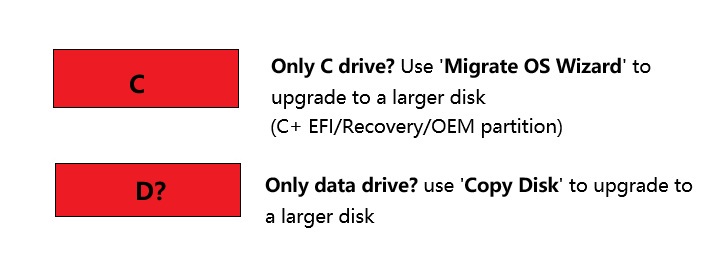
Situation: One disk contains the OS (C:), plus hidden system partitions like EFI System Partition (ESP), Recovery, OEM, or Healthy Primary. The disk is full.
Solution: Use the “Migrate OS Wizard” in Partition Resizer to upgrade to a larger disk.
- How it works: The wizard copies all partitions from the old disk to the new, larger one. It automatically expands the C: drive to use the extra space.
- Steps:
- Install the new larger disk.
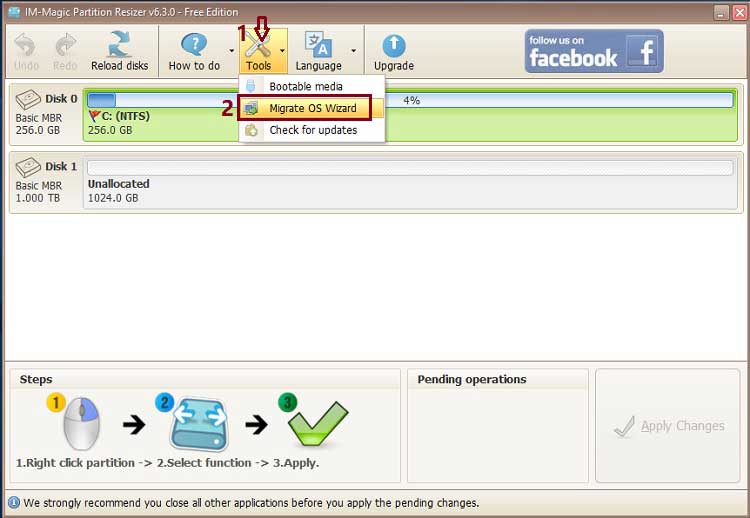
- Open Partition Resizer → select “Migrate OS Wizard” under Tools bar.
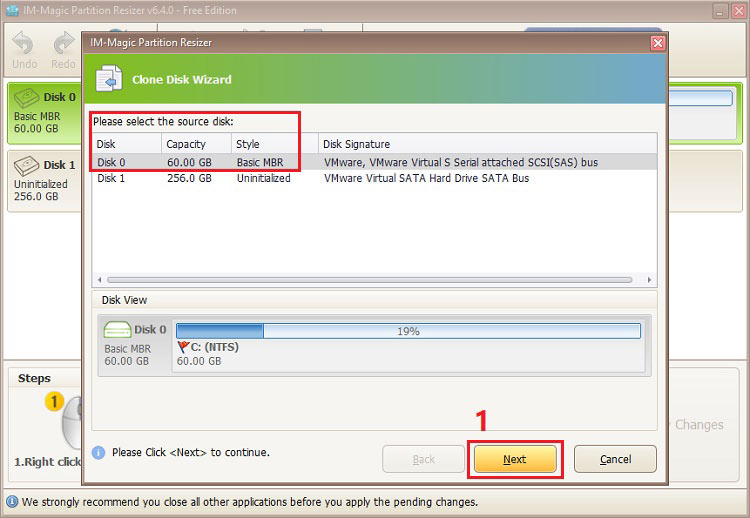
- Choose old disk as Source, new disk as Destination..
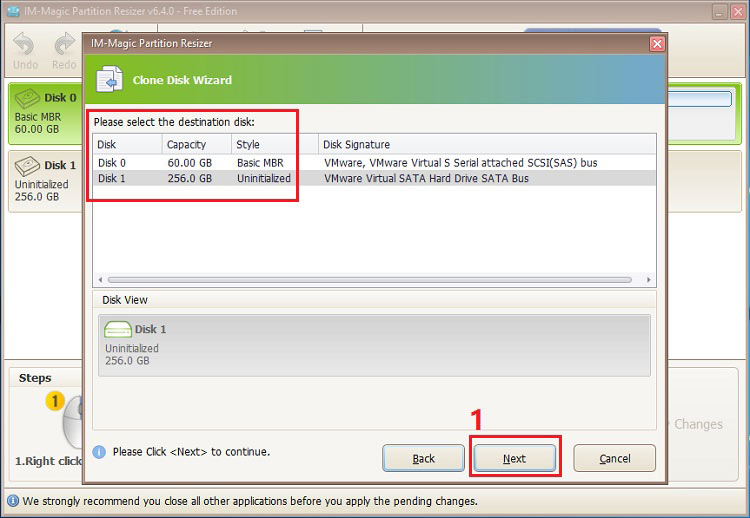
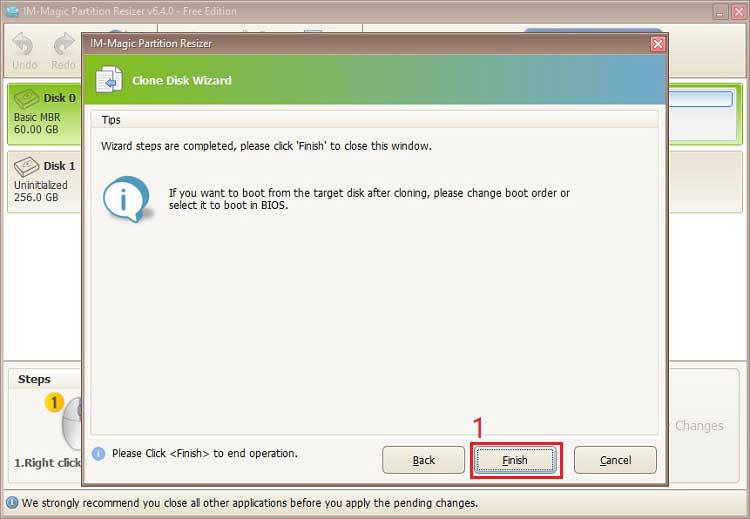
- Apply, shut down, swap disks, and boot from the new drive. (If you want to keep both disks, change the boot order from BIOS)
- BIOS first: set new disk to boot. Then, unallocated space shows up at the end—redistribute it. Alternatives: swap drives, or clean old C drive for data later.
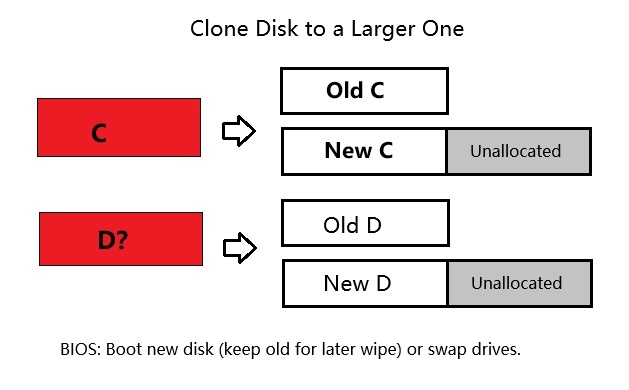
✅ best practice This preserves all recovery and EFI partitions.
More details, check it on this page: How to clone disk to a larger hdd/ssd
Then, if you want to use the old OS disk for data storage, you may use 'Clean up Disk' option (right-click the disk in Partition Resizer to show the option). The disk will become unallocated once you use the 'Clean up Disk'.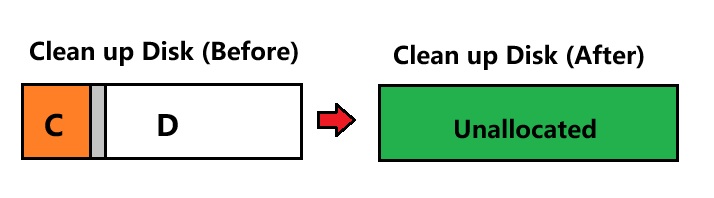
🧱 Case 2 · OS disk + data partition (C: + Recovery + D: on same disk)
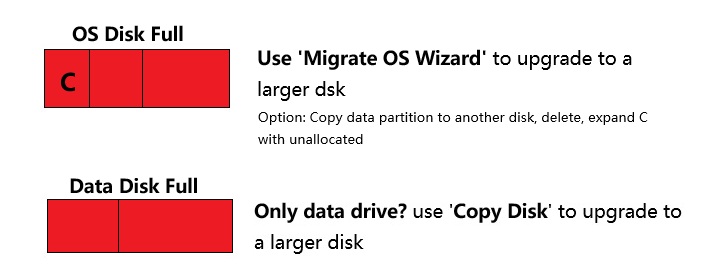
Situation: Same physical disk holds C: (OS) and D: (data). C: is full, D: has free space. You need more space for C:.
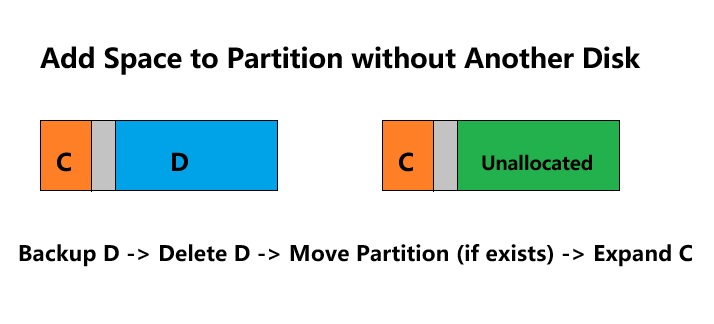
Copy D: to another disk (external) using “Copy Partition” (Right-click D, choose option 'Copy Partition'). Copy D to another external usb/hdd/ssd, Delete D: from original disk → unallocated space appears. Move Recovery partition to the far right, then extend C: into the unallocated space. Restore data to new partition or keep on external.
Note: A partition can only be moved if it has adjacent unallocated space. Right-click → Resize/Move → drag with cross arrows → Apply.
Read more: How to move a partition
Use “Migrate OS Wizard” (Case 1) to clone the whole disk to a larger new disk. After booting from the new disk, resize/move partitions: drag D: to the right, then extend C: using the new unallocated space.
💡 Tip: Option #2 is safer if you don’t want to move the Recovery partition manually.
Then the disk layout becomes as follows
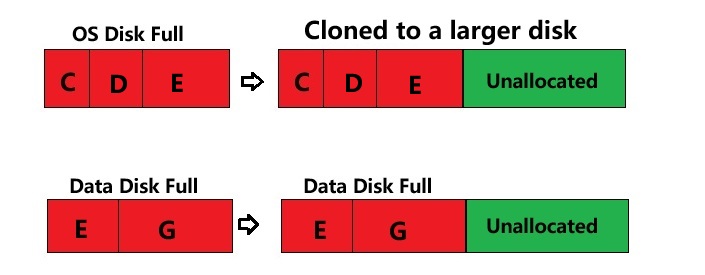
Note: You need to convert the disk from MBR to GPT if you want to add unallocated to disk when it's over 2TB.
C, D, E, Unallocated:
If you want to add unallocated to D, right-click E, select 'Resize/Move', move the partition E right into unallocated, then the unallocated will be at the left-side of E -> C, D, Unallocated, E (Now you can extend D)
If you want to add unallocated to C, right-click E, select 'Resize/Move', move the partition E right into unallocated, then the unallocated will be at the left-side of E -> C, D, Unallocated, E; repeat moving D drive, and then it will be C, Unallocated, D, E (Now you can extend C by right clicking C, choose 'Resize/Move', drag C drive right border into unallocated to add space, click APPLY and confirm OK)
Note: Changing the location of unallocated needs to move its adjacent partition.
More details: How to add unallocated space to C drive
💾 Case 3 · Only D: drive (non‑OS)
Situation: A data disk (D:) with no system files. It’s full and you want to move to a larger disk.
Solution: Use “Copy Disk” in Partition Resizer.
- How it works: Since it’s not the boot disk, you can clone the entire disk structure to a larger drive.
- Steps:
- Install the new larger disk.
- Right‑click the disk (not partition) of the old D: drive → select “Copy Disk”.
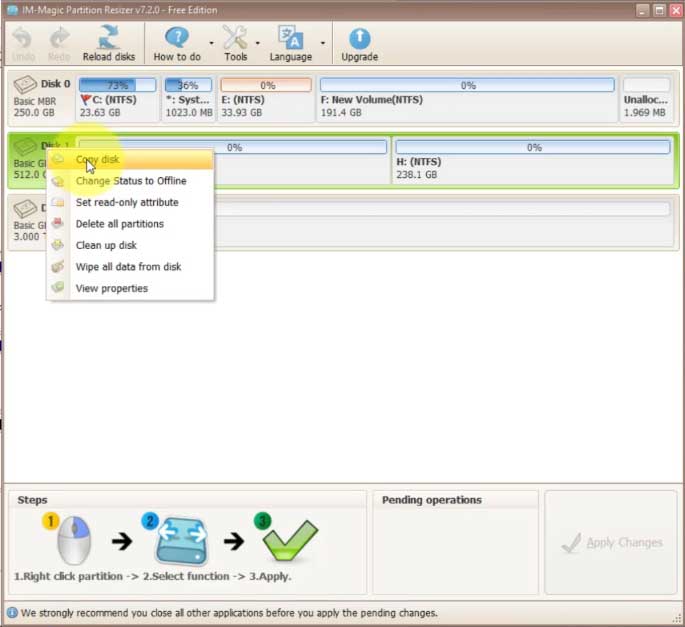
- Select the new disk as target.
- Check “Fit partitions to the entire disk” or drag the D: partition to fill the new disk.
- Clone old D: to larger disk → unallocated space at the end (redistribute). Then: new as D:, or old→E:, new→D: to keep both.
📂 Case 4 · Multiple data partitions (no OS)
Situation: Disk with partitions E:, F:, G: (data only). You want to combine them or enlarge one.
- Solution A (Backup & delete): Copy F: to an external backup → delete F: (unallocated). Then extend E: if adjacent, or move partitions to make them adjacent. Absorb the unallocated space.
- Solution B (Upgrade whole disk): Use “Copy Disk” (as in Case 2) to clone to a larger disk. On the new disk, extend the last partition (e.g., G:) to absorb the leftover unallocated space.
⚡ If partitions are not adjacent, use Resize/Move to slide them next to the unallocated space. (Begin by moving the partition immediately adjacent to the unallocated space. If there are multiple drives, continue moving them in sequence, one at a time.) Guide: How to move a partition
🔁 Extra scenarios & advanced fixes
Example: OS disk is full, how to fix the disk full problem? The data disk has a lot of space.
Disk 0 (GPT Recovery, D), 931.5GB
Disk 1 (ESP, GPT Recovery, C, Recovery, Image, DELL OEM, Unallocated), 119.2GB
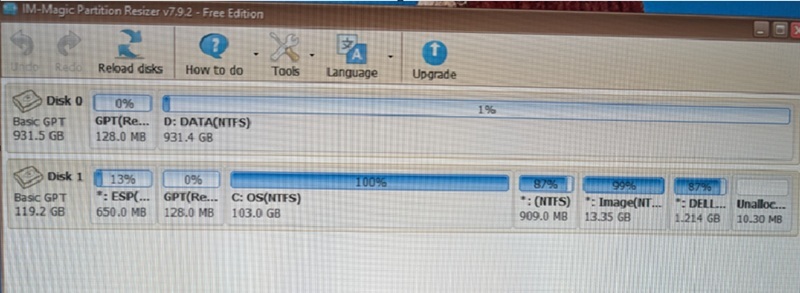
Note: Unallocated space cannot be transferred between disks—it must be on the same hard drive to be redistributed. While RAID can combine multiple disks, it is generally suited for advanced users, not typical home users.
The problem: OS disk 1 is full, running out of space
Fix: Prepare another large disk to clone the disk 1 to the larger disk using 'Migrate OS Wizard' in Partition Resizer.
The question: Can we use disk 0 as the destination disk to migrate the OS?
Answer: Yes, backup D and remove D first or remove all partitions during the process of cloning to make disk 0 totally empty as the destination disk. Here are the simple steps.
- Backup D drive first to a third disk.
- Click Migrate OS Wizard under Tools bar option, select disk 1 as source disk, select disk 0 as target disk, confirm removing all partitions on disk 0 during the cloning. Click APPLY, and confirm YES to start the cloning.
- Swap the disk, or change boot order in BIOS and then boot from the new disk.
- Once the PC starts opening from the new OS disk, if you did not swap the disk, then right click the Disk 1, select 'Clean up Disk' to make the disk unallocated for new storage.
➜ Unallocated space on the left of C:
[Unallocated 50GB] [C: 100GB] – You cannot extend C: to the left directly. Use Move/Resize to drag C: to the left into the unallocated space, then extend its right edge to use the full size.
➜ Recovery partition blocks unallocated space
[C: 100GB] [Recovery 500MB] [Unallocated 50GB] – Move the Recovery partition to the right (into the unallocated area), then extend C:. ⚠️ Caution: Moving Recovery may break booting. Safer: clone the whole disk to a bigger drive (Case 1).
➜ Two disks: D: (full) and E: (empty) on different drives
Fix: Use “Copy Partition” to copy D: to E:. Verify data, then delete D: and remove the old drive. On the new 2TB drive, extend the partition to fill the remaining space.
➜ C: full, D: has data you want to keep on the same disk
[C: 60GB – full] [D: 200GB – half empty]
Traditional fix – Back up D:, delete D:, move Recovery (if any) to the far right, then extend C: to 100GB, and create a new D: with the remaining space. Restore data.
Easier Fix with Partition Resizer - Shrink D (Drag its left border, then unallocated will be created at the left side of D), Move Recovery (if any), Extend C
⚠️ Golden rules for Partition Resizer
- Never interrupt the process: Unlike other traditional Partition Tools, power loss during a “Move” operation cannot corrupt data since the Partition Resizer provides rollback and power-off protection. However we still recommend you do not interrupt the process.
- Backup FIRST: Before moving system partitions (ESP, Recovery, OEM), create a full system backup.
- The “Unallocated” rule: You can only add unallocated space to a partition if they are touching. If not, move the partitions in between out of the way.
📋 Quick reference
- Only C: (OS disk): → Migrate OS Wizard (clone + expand).
- Only D: (data disk): → Copy Disk (clone to larger).
- OS + data on same disk: → Option 1: copy D: out, delete, extend C:. Option 2: Migrate OS to new larger disk, then resize.
- Multiple data partitions: → copy one partition for backup, delete, extend adjacent; or Copy Disk to upgrade whole disk.
💬 Need more examples? The patterns above cover 90% of real‑world scenarios. Always check the partition layout before acting.