How to Merge Unallocated Space to C Drive in Windows 10/11
Merging unallocated space to the C drive is one of the most effective ways to fix low disk space issues and improve system performance. Whether you use Windows 10 or Windows 11, your system drive can fill up quickly over time. Fortunately, you can easily combine unallocated space to C drive with reliable tools such as IM-Magic Partition Resizer (Free). This guide explains how to do it safely and effectively.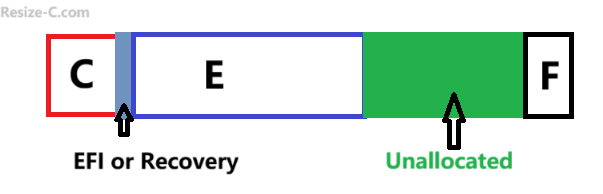
Example: C, EFI or Recovery, E, Unallocated Space, F
Task: Combine the unallocated space to C drive without losing data
Quick Steps Using Partition Resizer: Move E first, move EFI or Recovery, and then extend C (Details are illustrated below)
Links
- 1. Merge unallocated space to C drive using free tool IM-Magic Partition Resizer (Quick answer: Move partitions one by one and extend C)
- 2. How do I merge unallocated space to c drive using Disk Management (Quick answer: Delete all partitions sit between, except when EFI/Recovery sits there)
- 3. How to merge unallocated space to c drive using CMD Diskpart (Quick answer: Delete all partitions sit between, except when EFI sits there)
#1 Introducing IM-Magic Partition Resizer Free
IM-Magic Partition Resizer Free is a safe, powerful, and user-friendly tool that helps Windows users resize, move, merge, and extend partitions without formatting or losing data. What’s more, this is a completely free utility for Windows that safely manages disk partitions.
Key Features:
- Extend C drive without deleting data
- Move partitions to place unallocated space next to C drive
- Merge unallocated space easily
- Simple interface for all users
- Supports Windows 11, 10, 8, 7(IM-Magic Partition Resizer Free, 100% Free), and Server versions (IM-Magic Partition Resizer Server, Free Demo)
How to Merge Unallocated Space to C Drive Using IM-Magic Partition Resizer
Video: How to create and move unallocated space to C drive
For Windows 11/10/8/7 => Download Partition Resizer Free [100% Free]
For Windows Server 2025-2003 => Download Partition Resizer Server [Trial]
Step 1: Download and Install
Download and install IM-Magic Partition Resizer Free.
Step 2: Launch the Program
Open the tool to view all your disk partitions.
Step 3: Move Partition (If Needed)
If unallocated space is not adjacent to C drive, right-click the partition between them, choose “Move/Resize,” and drag the partition until the unallocated space sits next to C drive. Click OK.
Step 4: Extend C Drive
Right-click C drive → select “Resize/Extend” → drag the slider to absorb the unallocated space.
Step 5: Apply Changes
Click “Apply” to complete the process. Your C drive will now include the merged space. (All changes are virtual until you click the APPLY CHANGES button in the software.)
Note: You cannot combine unallocated space with a drive on a different physical disk unless they are configured as a virtual RAID. If no RAID is present, consider upgrading the OS disk to a larger hard drive using the free tool IM-Magic Partition Resizer.
#2 How to Merge Unallocated Space to C Drive Using Disk Management
Windows Disk Management allows you to extend partitions, but it has limitations. To merge unallocated space to the C drive:
- Open Disk Management (Win + X → Disk Management).
- Locate the C drive and the unallocated space.
- Delete any partitions between C and the unallocated space (note: EFI or Recovery partitions cannot be deleted).
- Right-click C drive → Extend Volume, and follow the wizard to add the unallocated space.
Note: If EFI or Recovery partitions sit between, Disk Management cannot merge the space. Consider using a third-party tool like IM-Magic Partition Resizer.
#3 How to Merge Unallocated Space to C Drive Using CMD Diskpart
You can also use Diskpart via Command Prompt to manage partitions. Steps:
- Open Command Prompt as administrator.
- Type
diskpartand press Enter. - Use
list volumeto identify C drive and the unallocated space. - Delete any partitions between C and unallocated space (EFI partition cannot be deleted).
- Select the C drive with
select volume Cand then extend it usingextend.
Warning: Deleting partitions will erase all data on them. Ensure important files are backed up before using Diskpart.
Can Windows 10/11 Merge Unallocated Space to C Drive?
Windows Disk Management allows extending partitions, but only if the unallocated space is directly next to the C drive on the right side. If this condition is not met, the Extend Volume option becomes unavailable.
This limitation is why many users turn to third-party tools that provide full flexibility — such as IM-Magic Partition Resizer.
| IM-Magic Partition Resizer Steps | Disk Management | |
| C, EFI, Unallocated Space |
|
No |
| C, EFI, E, Unallocated Space |
|
NO |
| C, E, Unallocated Space |
|
Delete E, Extend C |
| C, E, F, Unallocated Space |
|
Delete F and E, extend C |
- Unallocated space can be moved only by shifting the adjacent partition.
- Windows creates the EFI and Recovery partitions. The EFI partition cannot be deleted but can be moved with IM-Magic Partition Resizer without data loss.
Why You Need to Combine Unallocated Space to C Drive
When your C drive runs out of space, your system may slow down, updates may fail, and programs may crash. Adding free or unallocated space helps resolve these problems. Common reasons to combine unallocated space to C drive include:
- System updates or apps have consumed most system storage.
- A deleted volume created unallocated space.
- You shrank another drive and want that space for C drive.
- You want better PC performance and storage management.
FAQs About Merging Unallocated Space to C Drive
1. Why can’t I merge unallocated space to C drive in Windows?
Because Windows requires the space to be directly next to the C drive. If not, Disk Management cannot extend the partition.
2. Is IM-Magic Partition Resizer safe?
Yes. It performs all resizing operations without data loss.
3. Can I merge space from a different physical disk?
No. You can only merge unallocated space from the same hard drive.
4. Does it work on Windows 11?
Yes. It fully supports Windows 11 and Windows 10.
5. Will merging space affect my files?
No. Your files remain unchanged; only the drive size increases.
Final Thoughts
Low disk space on C drive can affect your system’s stability and performance. Using IM-Magic Partition Resizer Free, you can easily merge unallocated space to C drive in Windows 10 or 11 without data loss. This free tool provides a smooth and reliable way to manage your partitions and keep your PC running efficiently.
More Related Articles You May Like
- Add unallocated space to c drive server 2022
- Move unallocated space nex to the C drive server 2022
- Unallocated space is not adjacent to the c drive
- Change the location of the unallocated space
- Merge unallocated space to c drive
- Cant merge unallocated space to c drive
- Merge unallocated space to c drive using CMD
- how to merge unallocated space to c drive extend volume greyed out
- How to combine nonadjacent unallocated space to the C drive