Move unallocated space next to C drive Windows Server 2022/2025/2019 — Complete Guide
When your C: drive runs out of space on Windows Server, the most efficient fix is to move or merge unallocated space directly next to C:, then extend it. However, Windows built-in Disk Management can only extend partitions when the free space is adjacent. That’s where specialized tools like IM-Magic Partition Resizer Server come in — offering a non-destructive, safe way to rearrange partitions even on live servers.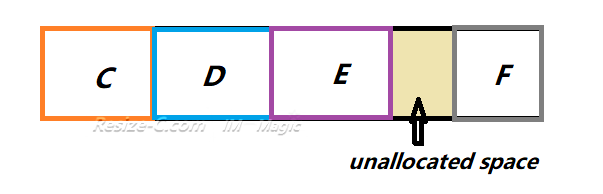
Quick Table — Cases and Solutions Overview
| Case | Scenario | Solution Summary (with IM-Magic Partition Resizer Server) |
|---|---|---|
| Case A | Unallocated space exists but not adjacent to C: | Use Move/Resize to slide partitions until unallocated space sits beside C:, then extend C:. |
| Case B | EFI or Recovery partition blocks C: | Move EFI or Recovery partition to the right using Move/Resize, make unallocated adjacent, extend C:. (Please move the first partition that is close to the unallocated space, and then the next to make the unallocated space next to the C drive.) |
| Case C | Unallocated space is on another disk | Use Migrate OS Wizard to migrate system to larger disk, then extend C: into new unallocated space. Or build disk into virutal disks using RAID arrays, and then you can add unallocated space from another disk. |
Different Cases for Moving Unallocated Space to the C Drive
Below are the most common real-world cases administrators face when trying to move unallocated space next to the system partition, with clear instructions on how to handle each scenario using IM-Magic Partition Resizer Server.
Video: How to create and move unallocated space to C drive
Case A — Unallocated space exists but is not adjacent to C:
Scenario: You shrink D: or another volume and create unallocated space, but a recovery or system partition lies between C: and that free block. Disk Management cannot move it, so C: cannot be extended.
How to fix it using IM-Magic Partition Resizer Server:
- Launch IM-Magic Partition Resizer Server.
- Select the partition (for example, D:) next to the unallocated space and choose Resize/Move Partition.
- In the graphical disk map, drag the entire partition to the right so that the unallocated space becomes immediately adjacent to C:.
- Click OK to confirm. The tool will display the new layout plan.
- Next, right-click the C: drive → choose Resize/Move Partition again → drag the right boundary to occupy the unallocated space.
- Click Apply Changes on the toolbar and confirm. IM-Magic will perform the move and extension without formatting or data loss.
Why IM-Magic helps: The software performs a live, non-destructive partition move that keeps all existing files intact.
Also read: How to move unallocated space, extend server 2022 c drive
Case B — EFI or system partitions block the unallocated space
Scenario: On UEFI/GPT systems (Windows Server 2016 and later), a small EFI or recovery partition often sits between C: and unallocated space. Moving these manually risks making the system unbootable.
How to handle it safely using IM-Magic Partition Resizer Server:
- Open IM-Magic Partition Resizer Server and identify the small EFI or Recovery partition between C: and the unallocated block.
- Select that partition and click Resize/Move.
- Drag the partition to the right so that the unallocated space is directly next to C:.
- Click OK, then select the C: drive and choose Resize/Move → extend into the unallocated block.
- Click Apply Changes. IM-Magic will notify you that this operation involves a system partition and must complete during reboot mode.
Example: C, EFI/Recovery, E, Unallocated Space
Steps:
- Right click E, choose "Resize/Move Partition", drag the E partition to the right, so that the unallocated space will be at the left side of the E drive and then the partition map will be: C, EFI/Recovery, Unallocated Space, E
- Right click EFI/Recovery, choose "Resize/Move Partition", drag the EFI/Recovery partition to the right, so that the unallocated space will be at the left side of the EFI/Recovery drive and then the partition map will be: C, Unallocated Space, EFI/Recovery, E
If you want to keep the current status, you may click 'APPLY CHANGES' in Partition Resizer Server to make the previous changes applied since they are all virtual before you click the APPLY CHANGES.
At this time, the unallocated space has reached the C drive, then you may extend the C drive now.
The last step: Right clicking the C drive, extend the C drive border to cover the unallocated space and then click OK. Click APPLY CHANGES at last to make the virtual changes applied in the end.
Why IM-Magic helps: Windows built-in tools cannot move no matter EFI or the Recovery partition. IM-Magic Partition Resizer Server can move the recovery or the EFI partition without losing data.
Note: Moving the EFI partition requests a reboot of the OS.
Case C — Unallocated space is on a different disk or volume
Scenario: You have unallocated space, but it’s on another physical disk or virtual disk — not the same one that holds C:.
How to manage it using IM-Magic Partition Resizer Server:
- Launch IM-Magic Partition Resizer Server and view both disks in the main window.
- Use the Copy Disk feature if you plan to migrate the system to a larger disk — it performs a 1:1 clone, preserving partitions, properties, and boot configuration.
- Once the clone is completed onto a larger disk, you can use Resize/Move Partition to expand the new C: drive into the new unallocated space on the same disk.
- Click Apply Changes to finalize.
The truth: Adding unallocated space from another physical disk cannot be operated without RAID array. The above changes with IM-Magic Partition Resizer Server is to upgrade the disk to a larger disk.
Details: How to migrate the OS disk to a larger disk without losing data.
Why IM-Magic helps: Windows Server doesn’t allow you to merge space from another disk into C:. IM-Magic’s cloning and resize tools let you expand storage seamlessly by migrating the entire system to a new drive where the unallocated space is available.
Advantages of IM-Magic Partition Resizer Server
- Non-destructive operations: No formatting or data loss when resizing or moving partitions.
- Server compatibility: Works with Windows Server 2025, 2022, 2019, 2016, 2012, and SBS editions.
- Supports NTFS, FAT32, and dynamic disks.
- Smart reboot scheduling: Only reboots when necessary (e.g., EFI or system partition movement).
- Easy GUI: Simple drag-and-drop resizing with live partition map visualization.
When does Windows Server require a reboot?
IM-Magic Partition Resizer Server can often resize C: without reboot if:
- The beginning of the C: drive is not changed.
- No EFI or system partition needs to move.
- The C: drive uses NTFS format.
However, if any of these conditions apply — for example, the start of C: must be shifted or EFI metadata must be rewritten — the tool automatically schedules the task for execution in reboot mode to ensure safety.
Best Practices Before Moving or Resizing Partitions
- Back up first: Use IM-Magic’s Copy Disk feature for a full clone before major partition changes.
- Close running applications: Avoid heavy I/O activity while resizing partitions.
- Confirm your target: Double-check that you’re moving the correct unallocated block and drive.
FAQ
Q1: Can I move unallocated space with Disk Management?
No. Windows Disk Management cannot move or reorder partitions; it can only extend into immediately adjacent unallocated space. IM-Magic Partition Resizer Server can move partitions and unallocated space freely.
Q2: Will resizing affect data on D: or E: drives?
When you use the Move/Resize function, IM-Magic preserves all files on every moved partition. The process updates partition tables and cluster mappings without overwriting data.
Q3: Does IM-Magic Partition Resizer Server support Server Core?
Yes, it can run on Windows Server Core if the graphical environment is available or remotely managed via a GUI session from another server.
Q4: Is the tool safe for production servers?
Yes, but always perform changes during maintenance windows and after backups. IM-Magic Partition Resizer Server is trusted in many production setups for non-destructive resizing operations.
Conclusion
By 2025, managing partitions across Windows Server 2022 and 2025 environments is a daily necessity for administrators. IM-Magic Partition Resizer Server provides an efficient, reliable way to move unallocated space next to C: and extend it without losing data or reinstalling Windows. Whether you face EFI partitions, non-contiguous free space, or new disk migration, its Move/Resize and Copy Disk features cover all scenarios safely.
Need help? You can always email your case to support@resize-c.com for quick, free assistance.
Windows Server Editions Commonly Used in 2025
As of 2025, most enterprise and SMB environments use a mix of:
- Windows Server 2022 — the current LTS release in widespread production use.
- Windows Server 2019 — still supported and popular for its stability and long vendor compatibility.
- Windows Server 2016 — aging, but still found in legacy systems.
- Windows Server 2025 — newly released, introducing enhanced SMB compression, kernel isolation, and AI-ready infrastructure.
All these editions rely on the same underlying partition logic, so the process of moving unallocated space next to C: remains essentially the same across them.
More Related Articles You May Like
- Add unallocated space to c drive server 2022
- Move unallocated space nex to the C drive server 2022
- Unallocated space is not adjacent to the c drive
- Change the location of the unallocated space
- Merge unallocated space to c drive
- Cant merge unallocated space to c drive
- Merge unallocated space to c drive using CMD
- how to merge unallocated space to c drive extend volume greyed out
- How to combine nonadjacent unallocated space to the C drive
Related Product
- IM-Magic Partition Resizer Server - Partition space redistributing software that works for Windows Server 2003-2025.