How do I change the location of an unallocated space
Short answer: You change the location of an unallocated space by moving the in-between partitions so the unallocated block becomes adjacent to the partition you want to expand (for example, the C: drive) with the help of IM-Magic Partition Resizer (free), which supports non-destructive move and resize operations on Windows computers like Windows 11 10 8 7 etc.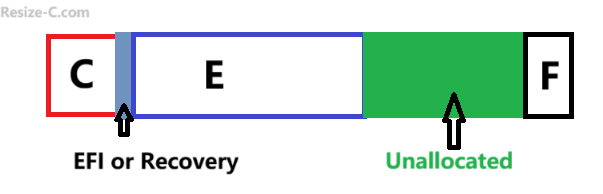
Why location matters for unallocated space
Disk partitioning depends on adjacency. If the unallocated space is directly next to the C: partition, you can simply extend C into that space using Disk Management or Diskpart. If it isn't adjacent — for example, if it's before C, after D or E, or on another physical disk — you need to take extra steps.
Common scenarios you’ll encounter
- Unallocated space before C drive — the free block sits left of the C partition.
- Unallocated space not adjacent to C drive — other partitions lie between C and the free space.
- Unallocated space after D or E — the free space is physically after later partitions.
- Unallocated space is from another disk — the free area is on a different physical drive.
Step-by-step approach using IM-Magic Partition Resizer (free)
Video: How to create and move unallocated space to C drive
For Windows 11/10/8/7 => Download Partition Resizer Free [100% Free]
For Windows Server 2025-2003 => Download Partition Resizer Server [Trial]
Before you begin: always back up important data. Partition operations are normally safe with modern tools, but backups prevent data loss if power or hardware issues occur.
Scenario A — Unallocated space is before the C drive
- Install and run IM-Magic Partition Resizer (free).
- Select the disk that contains the C: partition and the unallocated space.
- When the unallocated space is adjacent to the left-side of the C drive, right click the C drive in IM-Magic Partition Resizer, drag the left border to cover the unallocated space, click OK
- (If there are several partitions before the C drive and the unallocated space, choose the partition that sits between the unallocated space and C (if any) and use the Move/Resize action to drag it left or right so the unallocated block becomes adjacent to C.)
- Click the 'Apply Changes' button in the software to apply the changes to finally let the C: drive absorb the unallocated space. (All operations are virtual until you click APPLY CHANGES in Partition Resizer.)
Knowledge: IM-Magic Partition Resizer can directly expand a drive regardless of whether the unallocated space is located to its left or right, while Windows built-in tools like Disk Management or Diskpart can only extend a volume when the unallocated space is directly adjacent on the right.
Note: Modifying the beginning part of the C: (OS) drive requires a system reboot.
Example: C, E, Unallocated Space, F
Target: Extend C. Change the unallocated space from right side of E to C, expand C drive using the Unallocated space
(Note: Move E with Partition Resizer first, and then the location of the unallocated space will be changed to adjacent to C, and extend C when the unallocated space is adjacent.)
Steps: Right click the E drive in Partition Resizer, choose option 'RESIZE/MOVE PARTITION', drag the whole E drive right, and then the unallocated space will be adjacent to C, click OK, Right click C, and choose option 'RESIZE/MOVE PARTITION', drag the right border of the C drive right to convert the unallocated space. Click OK. At last click APPLY CHANGES. And then you will have a larger C drive.
Question: How do I change the location of the unallocated space using Disk Management or Diskpart?
Answer: Disk Management or Diskpart cannot move partition so it cannot change the location of the unallocated space. Try free tool IM-Magic Partition Resizer.
Example: C, E, Unallocated Space, F
Target: Expand F drive using the Unallocated space
(Note: You don't need to change the location of the unallocated space from left of F to right since IM-Magic Partition Resizer can directly expand F when the unallocated space is adjacent.)
Steps: Right click the F drive in Partition Resizer, choose option 'RESIZE/MOVE PARTITION', drag its left border to cover the unallocated space, click OK, and at last click APPLY CHANGES. And then you will have a larger F drive that gets the unallocated space.
Question: How do I expand F drive with the unallocated space using Disk Management or Diskpart?
Answer: Disk Management or Diskpart cannot extend F drive when its unallocated space is at left. Try free tool IM-Magic Partition Resizer.
Target2: Move the Unallocated space at the right side of F (C, E, Unallocated Space, F)
Steps: Right click F drive in Partition Resizer, choose option 'RESIZE/MOVE PARTITION', drag the whole partition F left when the mouse shows cross arrows, click OK, and you will see the unallocated space has been moved to the right side. At last, click APPLY CHANGES.
Note: Please click OK in each window if you have made some changes. The changes won’t take effect until you click APPLY CHANGES in Partition Resizer, allowing the software to execute all previous virtual changes.
Scenario B — Unallocated space is not adjacent to C (other partitions in between)
Example: C, EFI/Recovery, E, Unallocated Space, F
Target: Change the location of unallocated space at the right side of E to C, extend C
Steps: Prepartions: Download and install IM-Magic Partition Resizer; Simple steps: Move E first, move EFI or Recovery second, and then expand C
- Open IM-Magic Partition Resizer and visually inspect the partition map.
- Right click E, choose option 'RESIZE/MOVE PARTITION', drag the whole partition E right when the mouse shows cross arrows, click OK, and then the partitions will be virtually be C, EFI/Recovery, Unallocated, E, F
- Right click EFI or Recovery, choose option 'RESIZE/MOVE PARTITION', drag the whole partition right. Click OK. And then the partitions will be virtually be C, Unallocated, EFI/Recovery, E, F.
- Extend C. You may use IM-Magic Partition Resizer to extend C drive now or extend it using Disk Management. Right click C, choose option 'RESIZE/MOVE PARTITION', drag the right border of the C drive to cover the unallocated space. Click OK.
- Click APPLY CHANGES to execute all previous virtual changes.
For each intervening partition, use the Move function to relocate it, one by one, so that the unallocated area ends up adjacent to C. (Please move the partition that is near the unallocated space first)
Note: If the EFI partition is involved in this case, a reboot of OS is required when the location of the EFI partition has been changed.
Scenario C — Unallocated space after D or E
This is the same as Scenario B. Move partitions located between C and the unallocated block. Moving a partition (which is next to the unallocated space) in Partition Resizer is to changing the location of the unallocated space.
Scenario D — Unallocated space is on another disk
Important: You cannot directly merge unallocated space from a different physical disk into the C: partition on a separate disk when using basic partitions. Your options are:
- Clone or migrate the C partition to a larger disk that contains the free space and then expand it.
- Convert to a dynamic disk and create a spanned volume (not usually recommended for system C: because it complicates boot and recovery).
- Use the other disk as a new location for data, or move less-critical folders from C to the other disk to free space.
Why choose IM-Magic Partition Resizer (free)?
IM-Magic Partition Resizer offers a straightforward GUI for moving and resizing partitions without destroying data. It simplifies these tasks:
- Move partitions non-destructively.
- Extend or shrink partitions easily once space is adjacent.
- Support for common file systems and Windows system partitions.
Best practices and safety tips
- Backup first. Always create a full backup or at minimum copy critical files off the disk before making large partition changes.
- Keep power stable. Use a UPS or ensure the laptop battery is charged — interrupting a move operation can cause data corruption.
- Work step-by-step. Move only one partition at a time and verify results before proceeding.
- Understand limits. You can’t merge space across physical disks into a single basic partition without disk migration or dynamic volumes.
FAQ
Can I extend C: into unallocated space that’s to the left of C?
Yes. You must first move any partitions between the unallocated space and C so the free space becomes adjacent, then extend C: into it using a partition tool like IM-Magic Partition Resizer.
Is it safe to move partitions?
Moving partitions is generally safe with modern tools, but some may carry risk. However IM-Magic Partition Resizer offers 0 risk that is safe to use since it is powered with roll-back protection that protects the OS even from any power surge during the moving or resizing partitions. What's more, free tool Partition Resizer can backup disk for free. Or you may back up first and follow software prompts carefully.
What if the unallocated space is on another physical drive?
You can’t directly join unallocated space from another physical disk into C: on the current disk. Use cloning/migration or advanced volume types (with their tradeoffs) instead.
Do I need to pay to use IM-Magic Partition Resizer?
There is a free version that supports basic move and resize operations. For advanced enterprise features or priority support, commercial editions exist, but everyday relocation and resizing tasks can be done with the free edition.
Final tip: If you’re uncomfortable performing partition moves yourself, consider creating a full system image and/or asking a knowledgeable friend or technician to assist. With a safe backup and the right tool (like IM-Magic Partition Resizer), relocating unallocated space and expanding C: is straightforward.
More Related Articles You May Like
- Add unallocated space to c drive server 2022
- Move unallocated space nex to the C drive server 2022
- Unallocated space is not adjacent to the c drive
- Change the location of the unallocated space
- Merge unallocated space to c drive
- Cant merge unallocated space to c drive
- Merge unallocated space to c drive using CMD
- how to merge unallocated space to c drive extend volume greyed out
- How to combine nonadjacent unallocated space to the C drive