Unallocated space is not adjacent to the C drive — how to fix it (Resize-C)
Problem summary: When you try to extend your Windows C: partition and the option is greyed out, a common reason is that the unallocated space is not adjacent to the C drive. Windows Disk Management can only extend a basic volume into immediately adjacent unallocated space on the same disk. This article explains why that happens and how to safely make unallocated space adjacent to C: using free tool IM-Magic Partition Resizer and other best practices.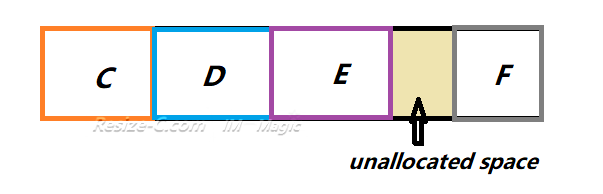
Solution overview — make unallocated space adjacent to C:
There are two broad approaches:
- Use a third-party partition manager like free tool IM-Magic Partition Resizer to move partitions so the unallocated space is next to C:.
- Remove or delete the intermediate partition (only when data is not needed or already backed up). (Free tool IM-Magic Partition Resizer can help backup disk for free with its Copy Disk or Migrate OS Wizard functions.)
Note: If the unallocated space is from another physical disk, you need to use RAID array to make them virtual (tough and not easy) or you may use free tool Partition Resizer to upgrade the current OS disk to a larger SSD OR HDD and add more unallocated space to the C drive from the new disk. Also read: Migrate the OS disk to a larger disk without losing data.
Introducing IM-Magic Partition Resizer
IM-Magic Partition Resizer is a free partition management tool that features an easy-to-use interface designed for both beginners and professionals. It allows you to move, resize, and merge partitions without losing data. When the unallocated space is not adjacent to the C drive, IM-Magic Partition Resizer can help you move partitions safely so that the unallocated space becomes directly adjacent to the C: drive. Once this is done, you can extend C: effortlessly — even when Windows Disk Management fails to do so.
Video: How to move unallocated space to extend C drive
For Windows 11/10/8/7 => Download Partition Resizer Free [100% Free]
For Windows Server 2025-2003 => Download Partition Resizer Server [Trial]
Step-by-step: use IM-Magic Partition Resizer to make unallocated space adjacent to C:
- Back up important data. Always create a full backup or at minimum back up personal files and a system image before changing partitions.
- Download and install IM-Magic Partition Resizer Free, and run it as an administrator.
- In the software interface, locate the C: drive and the unallocated space. Identify any partition sitting between them, first right click the partition that is the nearest to the unallocated space, choose RESIZE/MOVE PARTITION in the option, move the whole partition right, click OK.
- Next, select another partition between C: and the unallocated space and click Move/Resize. Drag the partition toward the end of the disk to move it, allowing the unallocated space to become adjacent to C:.
- Click Apply to execute the changes. The tool may require a system reboot to finish safely.
- After the move completes, right-click C: and choose Resize/Extend to expand it into the adjacent unallocated space.
- Restart and verify your system boots properly, and confirm the new C: drive size.
Tip: The steps can be found in the previous video on this page. IM-Magic Partition Resizer performs these tasks using non-destructive technology, minimizing risk of data loss. It even offers roll-back to ensure the disk safety. Or you may also consider backup the whole disk to another new disk using free tool IM-Magic Partition Resizer before these changes if you still worry about unexpected damage.
Also read: How to move unallocated space to c drive
Best practices and precautions
- Always back up your data before resizing or moving partitions.
- Use reliable software: IM-Magic Partition Resizer Free provides an intuitive interface that guides you step-by-step.
- Close other programs during partition operations to avoid conflicts.
- Allow time: Moving large partitions may take a while; do not interrupt the process.
- Check system integrity after completion to confirm no file system issues.
Troubleshooting
If extending C: still fails after making unallocated space adjacent to C:, consider these checks:
- Ensure the unallocated space is on the same physical disk as the C: partition.
- Run chkdsk to check for errors that might prevent resizing.
- Check if the partition type is compatible (for example, C: on GPT vs unallocated on MBR).
- If issues persist, restore your backup or contact IM-Magic support for further assistance.
Why the unallocated space is not adjacent to the C drive
There are a few common reasons the unallocated space is not adjacent to the C drive:
- Another partition (for example D: or a EFI/Recovery partition) exists between C: and the unallocated space.
- The unallocated space was created by deleting a partition that is not next to C:.
- The disk uses a partition scheme (MBR/GPT) and layout that prevents simple extension without reorganizing partitions.
- Windows Disk Management is limited: it cannot move partitions; it can only extend into contiguous free space.
Why Windows Disk Management may be limited
Windows built-in tools are conservative by design. Disk Management will let you shrink or delete partitions and extend into adjacent unallocated space, but it will not move a partition that sits between C: and the free space. That is why many users get blocked when the unallocated space is not adjacent to the C drive.
FAQ
What does it mean when the unallocated space is not adjacent to the C drive?
It means another partition lies between C: and the unallocated space, preventing Windows from extending C: using its built-in tools.
Can IM-Magic Partition Resizer move unallocated space without losing data?
Yes. IM-Magic Partition Resizer is designed to move and resize partitions without deleting or damaging data. It uses safe, non-destructive operations, though backups are still recommended.
Is IM-Magic Partition Resizer really free?
Yes. IM-Magic Partition Resizer offers a free version that includes essential features such as moving, resizing, and extending partitions with an easy-to-use graphical interface.
Will it work with SSDs and HDDs?
Yes. IM-Magic Partition Resizer Free supports both SSD and HDD storage devices, and works with GPT and MBR disks.
How long does it take to move partitions?
The time depends on data size and hardware speed. Smaller moves can take minutes, while larger partitions might take an hour or more.
Conclusion
If the unallocated space is not adjacent to the C drive, Windows Disk Management alone cannot extend the partition. With IM-Magic Partition Resizer Free, you can easily move partitions and make unallocated space adjacent to C: without losing data. Its simple interface and safe, non-destructive design make it an ideal choice for users seeking to expand their system drive quickly and safely. Remember to back up your data before resizing, and you’ll have a larger, optimized C: drive in just a few steps.
More Related Articles You May Like
- Add unallocated space to c drive server 2022
- Move unallocated space nex to the C drive server 2022
- Unallocated space is not adjacent to the c drive
- Change the location of the unallocated space
- Merge unallocated space to c drive
- Cant merge unallocated space to c drive
- Merge unallocated space to c drive using CMD
- how to merge unallocated space to c drive extend volume greyed out
- How to combine nonadjacent unallocated space to the C drive