How to Delete All Partitions or One Partition
Are you looking for a method to delete one partition or all partitions on a hard disk of your computer? Probably, you want to delete all partitions in order to redistribute disk space. Or you want to delete all partitions to erase all data. Windows system allows you to delete partition under Disk Management. This page will share IM-Magic Partition Resizer, with which you are able to delete all partitions together on the same hard disk or delete one partition at a time.
Quick links
- #1. How to delete all partitions
- #2. How to delete one partition
- #3. Is it possible to delete the Recovery or EFI partition?
#1. How to Delete All Partitions using IM-Magic Partition Resizer
Note: Deleting all partitions will remove all partitions together with their data. The disk will become unallocated once the software has deleted all partitions.
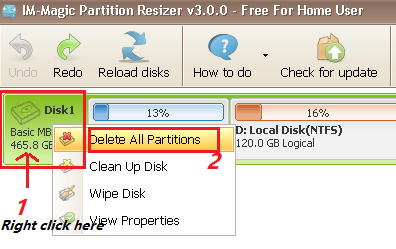
Step1. Right click the disk (.e.g. disk 0) rather than any partition and select "Delete All Partitions".
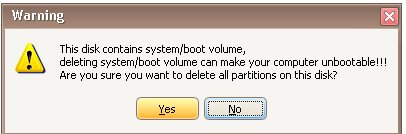
Step2. Click "Yes" to confirm delete the selected disk.
Step3. Click "Apply Changes" button
Tip:
1. Delete system / boot partition can make your computer become unbootable
2. The selected disk will show as unallocated and all data stored on this disk will be erased with delete, so you had better backup data in advance.
#2 How to delete a partition using IM-Magic Partition Resizer
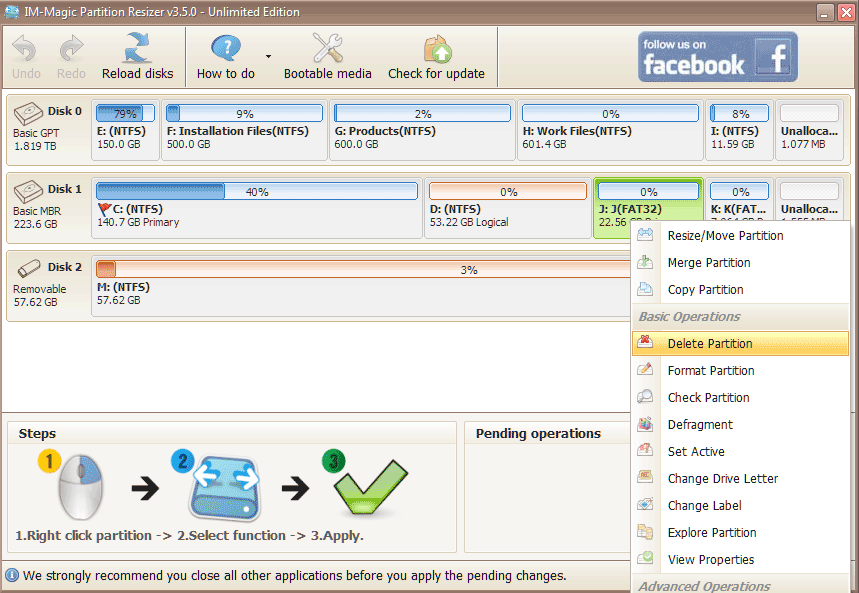
Right-click a partition, and choose option 'Delete Partition' (This will remove this partition including its data, and once you have removed this partition, the space will become unallocated.)
#3 Can you delete the Recovery partition or EFI partition?
Note: Deleting the recovery partition (whether healthy recovery or system reserved) will disable System Restore. Proceed with caution.
To delete the Recovery partition: Right-click the Recovery partition in IM-Magic Partition Resizer and select 'Delete Partition'.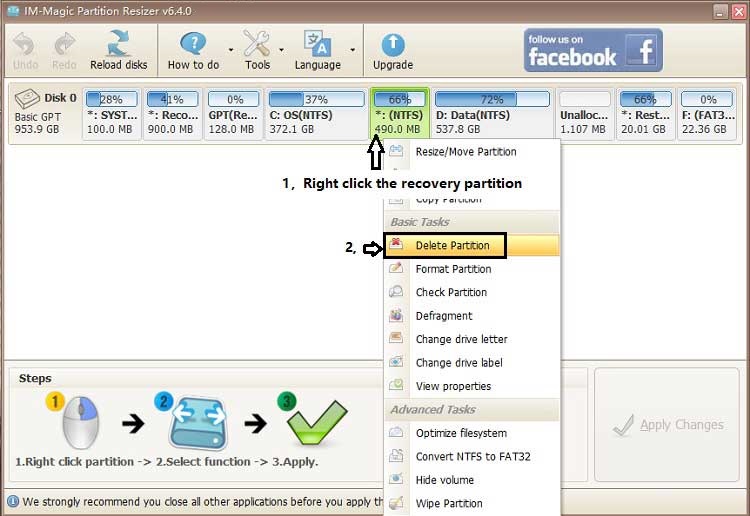
Also read: how to delete recovery partition on Windows 11 10
Can you delete the EFI partition? No. The EFI partition is essential for booting GPT disks and cannot be deleted.
Note: EFI parition cannot be deleted, however you can use IM-Magic Partition Resizer to move the EFI partition without losing data.
For Windows 11/10/8/7 => Download Partition Resizer Free [100% Free]
For Windows Server 2025-2003 => Download Partition Resizer Server [Trial]