Resize-C: Fix “C Drive Extend Volume Greyed Out” & “C Drive Extend Volume Disabled in Disk Management”
Short summary: If the C drive extend volume greyed out or c drive extend volume disabled in Disk Management is blocking you, this Resize-C guide explains why it happens and gives step-by-step solutions to safely extend your system partition.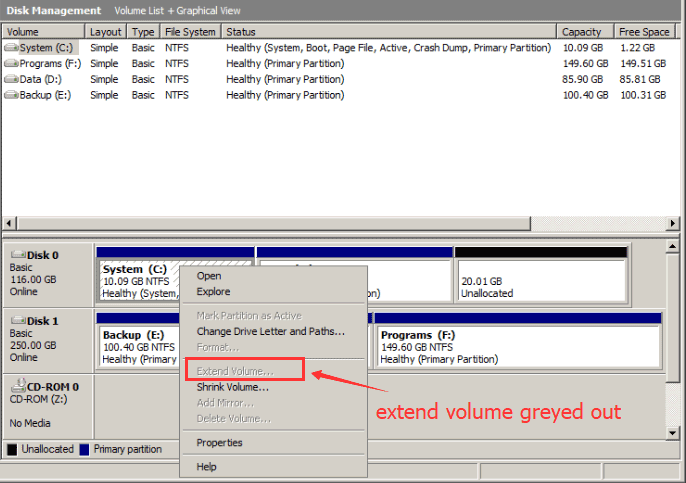
Introducing the Easiest Free Solution: IM-Magic Partition Resizer
If you want the simplest, beginner-friendly method to fix C drive extend volume greyed out, the free edition of IM-Magic Partition Resizer is one of the easiest tools available.
Video: How to fix extend volume greyed out in Disk Management
For Windows 11/10/8/7 => Download Partition Resizer Free [100% Free]
For Windows Server 2025-2003 => Download Partition Resizer Server [Trial]
Unlike Windows Disk Management, IM-Magic Partition Resizer can:
- Move partitions (including the recovery or EFI partition blocking the C drive)
- Merge unallocated space to C drive without data loss
- Resize partitions without data loss
- Perform one-click C drive extension if free space exists anywhere on the disk
How to Extend C Drive Easily Using IM-Magic Partition Resizer
Steps (simple):
- Install IM-Magic Partition Resizer Free.
- Right click a large partition to shrink volume and create unallocated space first.
- Move the partition to get the unallocated space adjacent to the C drive. (Move the partition that is next to the unallocated space first)
- Right-click the C drive → choose Extend.
- Click Apply to execute the extension.
Note: Moving the unallocated space is to move its adjacent partition in Partition Resizer. Just right click the Partition, choose 'Resize/Move', when the mouse shows cross arrows, move the whole partition left or right and then the unallocated space will be moved automatically.
This tool completely bypasses the limitations that cause c drive extend volume disabled in Disk Management, making the process fast and safe even for beginners. What's special? Partition Resizer can move partitions to change the location of the unallocated space without losing data while Disk Management cannot move unallocated space or partition.
Also read: extend volume greyed out Windows 11
Why the “Extend Volume” Option Is Greyed Out
Windows Disk Management can be frustrating because the Extend Volume command is only available under specific conditions. If you see the C drive extend volume greyed out message or find the c drive extend volume disabled in Disk Management, one or more of the following technical reasons is usually responsible.
No Unallocated Space Directly Next to C:
Disk Management can only extend a partition when unallocated space is immediately to the right of that partition. If you have unallocated space elsewhere on the same disk, Disk Management will not allow extension.
Unallocated Space Is on a Different Disk
Unallocated space must exist on the same physical disk as the C drive. If your PC has multiple drives, space on a second disk cannot be used to extend the C drive.
Partition Type or Disk Layout Restrictions
- MBR limits: Master Boot Record (MBR) disks have a maximum of 2TB, four primary partitions and other constraints that may block extension.
- File system: Windows supports extending NTFS partitions. If the C drive is not NTFS, extension may be disabled.
- Locked files or encryption: BitLocker or system files in use can also prevent modification.
Safe Fixes for “C Drive Extend Volume Greyed Out”
The following solutions progress from simple to advanced. Pick the approach that fits your comfort level and backup status.
1. Move the Recovery Partition (Recommended)
Commonly, the layout looks like this: C: → Recovery Partition → Unallocated space. Since Disk Management cannot move partitions, a third-party partition tool like IM-Magic Partition Resizer is needed to move the recovery partition to the right so unallocated space sits next to C.
Steps (general):
- Install Partition Resizer
- Right click the Recovery Parititon, choose RESIZE/MOVE, when the cursor shows four arrows, move the recovery partition so unallocated space is adjacent to C.
- Extend the C drive within the tool or in Disk Management once the space is adjacent.
2. Delete the Recovery Partition (Use With Caution)
Note: You can move the recovery partition using Partition Resizer to make the unallocated space next to the C drive and extend C without deleting it.
You can delete the recovery partition using Diskpart or IM-Magic Partition Resizer since Disk Management cannot delete the recovery partition, so the unallocated space becomes directly adjacent to C. Warning: deleting recovery partitions removes recovery and reset capabilities; make sure you have installation media or backups.
IM-Magic Partition Resizer has 'Copy Disk' feature that can clone the whole disk properties to another disk for backup. It's for free!
3. Shrink and Move Other Partitions
Shrinking a volume can generate unallocated space on the same disk.
If the unallocated space is on the same disk but not next to C, move the unallocated region next to C using a partition utility like Partition Resizer. After moving, extend the C drive.
4. Convert MBR to GPT (When Applicable)
If an MBR layout or partition-count limit is blocking the extension, convert the disk to GPT. Windows includes mbr2gpt for safe conversion in many cases. Always back up data before converting partition styles.
Also read: How to convert OS disk gpt
5. Use DiskPart (When Unallocated Space Is Adjacent)
If unallocated space is already adjacent but Disk Management still shows the extend volume disabled state, you can try DiskPart:
diskpart
list volume
select volume C
extend
Run these commands from an elevated command prompt. DiskPart will extend the volume if space is available.
Note: Usually Diskpart works the same as Disk Management and cannot extend the limits. So extending volume using Diskpart usually won't help.
6. Temporarily Suspend BitLocker
If the drive is encrypted with BitLocker, suspend protection in the BitLocker control panel, perform the resize operation, then resume protection.
7. Avoid Dynamic Disks Unless Necessary
Dynamic disks can allow combining volumes but introduce compatibility and recovery complexity. Use them only if you understand the tradeoffs.
Preventing Future C Drive Space Issues
After resolving the immediate problem, follow these best practices to keep the C drive healthy:
- Move large media, games, or virtual machines to another drive.
- Use Storage Sense or disk cleanup utilities to remove temporary files regularly.
- Change default locations for large app installations when possible.
- Keep a small buffer of free space (10–20% recommended) on the C drive for Windows updates and performance.
Quick Troubleshooting Checklist
- Is there unallocated space on the same disk and adjacent right to C?
- Is the partition formatted NTFS? Note: The OS partition cannot be converted to NTFS by any methods if it's already in use..
- Is BitLocker active — if so, suspend it?
- Does the disk use MBR with four primary partitions?
- Do you have a full backup before making changes?
Tip: if you are unsure, create a full image backup before moving or deleting partitions.
Conclusion
The C drive extend volume greyed out or c drive extend volume disabled in Disk Management message usually indicates a layout or format restriction rather than a permanent problem. Using Resize-C techniques — moving or deleting blocking partitions, converting disk types when appropriate, or using free tool Partition Resizer — you can extend your C drive safely. Always back up your system before disk operations.
If you want a downloadable step-by-step checklist or an example command list for DiskPart and mbr2gpt, request it and it will be provided.