How to Fix Unallocated Space Left of C Drive and Move It to the Right
If your system shows unallocated space left of C drive or unallocated space in front of C drive, you may not be able to extend the C: partition using Windows Disk Management. This problem commonly occurs after deleting a recovery partition, shrinking a preceding volume, or removing a partition that sits before the system partition. This article explains the real reason Disk Management cannot extend C:, corrects common misconceptions, and shows reliable solutions — including a simpler free option using IM-Magic Partition Resizer.
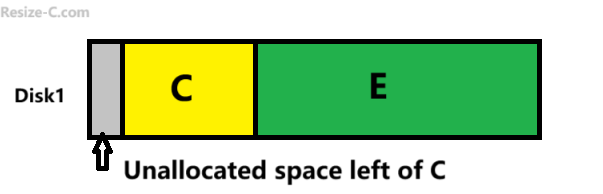
Why Disk Management Cannot Extend C: When Unallocated Space Is on the Left
Windows Disk Management has a strict limitation: the Extend Volume operation only works when unallocated space is immediately to the right of the target partition. Disk Management does not have the ability to move partitions or relocate unallocated space from left to right. If the unallocated space is on the left (in front) of C:, the Extend Volume option for C: will remain disabled.
Typical scenario that causes this
- Delete or shrink a partition that lies before C: (for example, a recovery partition or older data partition).
- Unallocated space appears but it is located to the left of C: (in front of your system partition).
- Extend Volume is greyed out for C:, because Disk Management cannot use left-side unallocated space to extend.
Correcting a Common Misunderstanding
Many how-to guides suggest that deleting the partition between C: and the unallocated space will allow you to extend C:. This is incorrect. Deleting that partition only merges its area into unallocated space, but the combined unallocated block still remains on the left side of C:. Disk Management will not move the C: partition or the unallocated block, so Extend Volume remains unavailable.
How to Move Unallocated Space From Left to Right of C: — Real Working Solutions
Because Disk Management cannot move partitions, the practical fix is to use a partition utility that supports Move/Resize operations. Below are two reliable approaches with step-by-step instructions.
1. Use IM-Magic Partition Resizer (Free — Easiest)
IM-Magic Partition Resizer is a free, beginner-friendly partition manager that supports moving partitions and repositioning unallocated space. It is often the simplest route for users who want a no-cost solution that avoids deleting partitions and risking data loss.
Video: How to move unallocated space and extend partition
For Windows 11/10/8/7 => Download Partition Resizer Free [100% Free]
For Windows Server 2025-2003 => Download Partition Resizer Server [Trial]
Note: IM-Magic Partition Resizer can directly add the unallocated space to C drive when the unallocated space is at the left side of the C drive by simply dragging the left border of the C drive to add the unallocated space.
Here are short simple steps: (extend c drive with the left unallocated space)
- Download: Download, install IM-Magic Partition Resizer, and run it.
- Select C: Right click the C drive, choose option "Resize/Move".
- Extend C: Hover the cursor at the left border of the C drive, when the cursor shows double arrows drag the left border of the C drive to add the unallocated space, click OK.
- Click APPLY CHANGES and wait a reboot to finish all these.
Two Notes: Changing the start of sector of the C drive will ask for a computer reboot to finish all these changes. If there are several partitions sit between the unallocated space and the C drive, move the first left one that is adjacent to the unallocated space, and then move the rest one by one until the unallocated space has been contiguous to the C drive.
Alternative steps: (Move the unallocated space to the right side of the C drive and extend C)
- Download and install IM-Magic Partition Resizer from the official site resize-c.com.
- Run IM-Magic and locate the disk layout that contains C: and the unallocated space.
- Move: If the partition map is (unallocated space | C), you may right click C drive in Partition Resizer, select "Resize/Move" option, drag the whole C drive left side to change the location of the unallocated space, click OK. [If there are other partitions sits between the unallocated space and the C drive, right click the first partition, the one that is adjacent to the unallocated space, ) select "Resize/Move" option, drag the whole partition left. And then the unallocated space will be moved closer to the C drive. Repeat the moving partition steps until the C drive is contiguous with the C drive.
- Move: Right click the C drive, choose the Move/Resize option and drag the C partition leftward so the unallocated space shifts to the right of C:.Click OK
- Extend C: You may right click C drive to add the unalloated space to C drive now
- Confirm and apply the changes. The tool requires a reboot to perform operations safely when the start part of the C drive has been changed.
- After completion, the unallocated space should now be immediately to the right of C:. Use IM-Magic or Windows Disk Management to extend C:.
Important: Always back up your important files before making partition changes. While IM-Magic is designed to preserve data, backups mitigate risk.
Also read: How to move unallocated space
2. Use Other Trusted Third-Party Partition Tools
If you prefer alternatives, the process is essentially the same. Recommended tools that can move partitions include:
- AOMEI Partition Assistant
- EaseUS Partition Master
- MiniTool Partition Wizard
These tools let you move the blocking partition so the unallocated space ends up directly to the right of C:, after which you can extend the system volume.
Unallocated Space at Right of C: Extend the C: drive with Disk Management
After moving the unallocated space so it is adjacent to the C: drive, you can use Windows' Disk Management.
- Open Disk Management by pressing the Windows key + R, typing diskmgmt.msc, and pressing Enter.
- Right-click on the C: drive and select "Extend Volume".
- Click "Next" in the wizard that appears.
- The unallocated space should be automatically selected. If not, manually select it from the list of available space and click "Add".
- Follow the on-screen prompts to complete the process and extend the C: drive.
Step-by-Step Quick Checklist
- Confirm that unallocated space is on the left of C: (open Disk Management to inspect layout).
- Do NOT expect Disk Management to move unallocated space or extend C: when the space is left of C:.
- Download a partition tool that supports Move/Resize (IM-Magic is a free option).
- Move the partition that blocks C: so unallocated becomes right-adjacent to C:.
- Apply changes and reboot if prompted.
- Extend C: using the tool or Disk Management after the unallocated space is right of C:.
- Create backups before starting and verify system stability after changes.
Also read: How to clone a disk to another hdd/ssd for backup with free tool IM-Magic Partition Resizer
Frequently Asked Questions (FAQ)
Q: Will deleting the partition between C: and unallocated space let me extend C:?
A: No. Deleting that partition only increases unallocated space, but it remains on the left side of C:. Disk Management cannot extend C: using left-side unallocated space.
Q: Is IM-Magic Partition Resizer free and does it work?
A: IM-Magic offers a free edition that supports moving and resizing partitions and it does work for repositioning unallocated space. The free edition covers most common needs, although advanced features may be in paid versions.
Q: Will I lose data when moving partitions?
A: Reliable partition tools are built to preserve data during moves, but no operation is risk-free. Always back up important data before performing partition changes.
Q: Do I need to reinstall Windows after moving partitions?
A: No. Moving partitions and extending C: does not require reinstalling Windows when done correctly. The system will continue to boot normally if operations complete successfully.
Conclusion
When you encounter unallocated space left of C drive, the key fact to remember is: Disk Management cannot move unallocated space or extend C: unless that space is immediately to the right of the C: partition. The practical, safe solution is to use a partition manager with Move/Resize capability. For many users the easiest free option is IM-Magic Partition Resizer, which can move the blocking partition, shift unallocated space to the right of C:, and then allow you to extend your system drive without reinstalling Windows. Always back up before making changes and follow the tool’s prompts carefully.
Want this as a WordPress-ready post, printable checklist, or shorter meta-summary? I can provide any of those formats on request.