How to Shrink D Drive to Extend C (Windows 11 & Windows 10)
Summary: Shrinking d drive will create unallocated space in Disk Management or Diskpart, however the unallocated space is not adjacent to the right side of the C drive. So it cannot enable the EXTEND VOLUME option in Disk Management for the C drive. In this case, free tool IM-Magic Partition Resizer can resize move and extend any partition without losing data including shrinking D drive to extend c drive.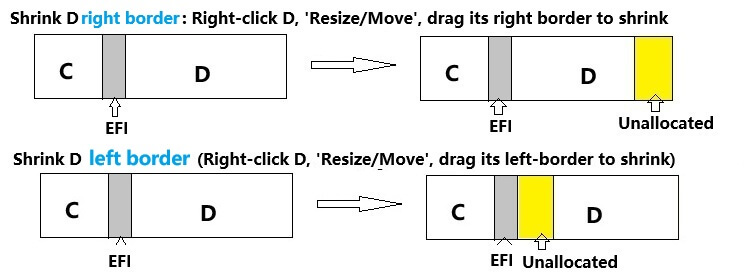
Safe and easier solution — IM-Magic Partition Resizer (free)
Video: How to shrink D and extend C drive
For Windows 11/10/8/7 => Download Partition Resizer Free [100% Free]
For Windows Server 2025-2003 => Download Partition Resizer Server [Trial]
Recommended workflow (safe approach)
- Back up important data. Always back up before changing partitions. Backup partition with 'Copy Partition' or 'Copy Disk' first.
- Download, install and open Partition Resizer
- Right click D drive, choose 'Resize/Move' option
- Shrink D (with Disk Management or IM-Magic) to create unallocated space. Drag its left border inside, then the unallocated space will be created at the left side of D drive accordingly.
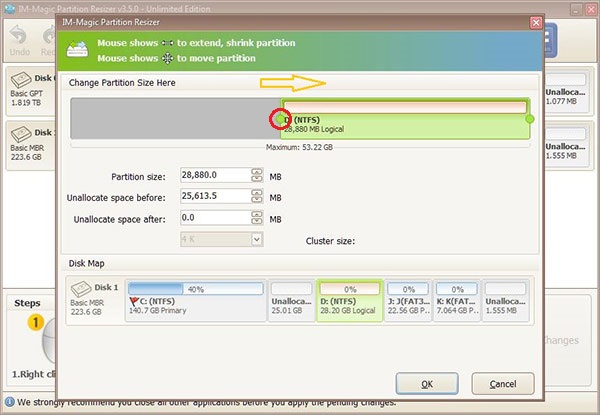
- If the unallocated space is not adjacent to C:, use IM-Magic to move the partitions (including the Recovery partition) so that the unallocated space becomes adjacent to C:. To move a partition, right-click the partition next to the unallocated space and select “Resize/Move.” Hover the mouse over the middle of the partition. When the cursor changes to a four-way arrow, drag the partition. The unallocated space will then be repositioned accordingly.
- Extend C into the adjacent unallocated space when its finally close to the C drive.
- Click OK in each window and click APPLY in the end. Confirm restart if needed.
Note: The whole process won't affect the C drive or the data drive. It may just need a restart if needed.
Why shrinking D alone isn't enough
Understanding partition layout is key. Typical layouts look like this:
C | Recovery | D | Unallocated
Here, shrinking D creates Unallocated after D. Because unallocated space is not adjacent to C, Disk Management will not extend C. Even deleting D may not help if a Recovery or EFI partition sits between C and the unallocated space; Disk Management cannot move those system partitions.
IM-Magic Partition Resizer (free edition) lets you:
- Shrink and resize partitions without data loss.
- Move partitions so that unallocated space becomes adjacent to C.
- Extend the C drive once unallocated space sits to its right.
This approach avoids deleting partitions and preserves your layout while giving Disk Management the contiguous unallocated space it requires.
Also read: How to shrink partition to extend C
Disk Management cannot extend C after shrinking D
Disk Management cannot extend the C drive after you simply shrink the D drive. When you shrink D, Windows places the new unallocated space to the right of D. The built-in Disk Management tool will only extend a volume into unallocated space that is immediately adjacent to the target volume on its right side. If the unallocated space is not directly next to C, the Extend Volume option for C remains unavailable.
Note: IM-Magic Partition Resizer allows you to create unallocated space on the left side of the D drive when shrinking it. To do this, drag the left border of the D partition inward while resizing it in Partition Resizer.
When Disk Management can extend C
- Only when unallocated space is immediately to the right of C (adjacent).
- This usually requires deleting the partition directly to the right of C so unallocated space sits next to C.
- There must be no Recovery, EFI, or other partitions between C and the unallocated space.
How to shrink D with Disk Management (what it actually does)
- Right-click Start → Disk Management.
- Right-click the D partition → Shrink Volume.
- Specify shrink size → click Shrink. This creates unallocated space after D, not next to C.
FAQ
Q: Can I extend C just by shrinking D?
A: No. Shrinking D alone places unallocated space after D. Disk Management will not extend C unless the unallocated space is immediately to C’s right.
Q: Do I have to delete D to extend C?
A: Only if you insist on using Disk Management and want to create adjacent unallocated space that way. Deleting D removes data — a third-party tool (for example, IM-Magic Partition Resizer) can avoid deletion.
Q: Is moving Recovery or EFI safe?
A: IM-Magic Partition Resizer can move the EFI partition without losing data, but it does require a reboot. Keep in mind that moving the recovery partition will disable the current system restore function. Always create a backup and, if possible, make a system image or bootable recovery drive before making any changes. IM-Magic Partition Resizer also includes a Copy Disk feature that can create a full clone of the current disk onto another disk.
Conclusion
To be clear: Disk Management cannot extend C after shrinking D. The unallocated space must be adjacent to C for the Extend Volume feature to work. If partitions (Recovery, EFI, or D) sit between C and unallocated space, use a capable partition tool like IM-Magic Partition Resizer to move or resize safely and extend C without deleting important data.