📂 Explore Partition with IM-Magic Partition Resizer – Simple User Guide
This guide shows you how to use the “Explore Partition” feature in IM-Magic Partition Resizer. With this tool, you can browse files and folders inside any partition (hard disk, SSD, SD card, or USB drive) directly from the software. No need to open File Explorer – you can quickly check what's on a partition before resizing, formatting, or converting it.
🔧 Part 1: Download & Launch IM-Magic Partition Resizer
- If you don't have the software, download IM-Magic Partition Resizer Free or Pro from the official website resize-c.com.
- Install it and launch the program. For best results, right-click the icon and select “Run as administrator”.
- The main window shows all your disks (internal HDD/SSD, external drives, SD cards, USB flash drives) and their partitions in a clear list.
For Windows 11/10/8/7, dowload free software => Download for Win 11-XP [Free Software]
For Windows Server 2025-2003, Download free Demo => Download for Win Server [Trial]
🖱️ Part 2: How to Access “Explore Partition”
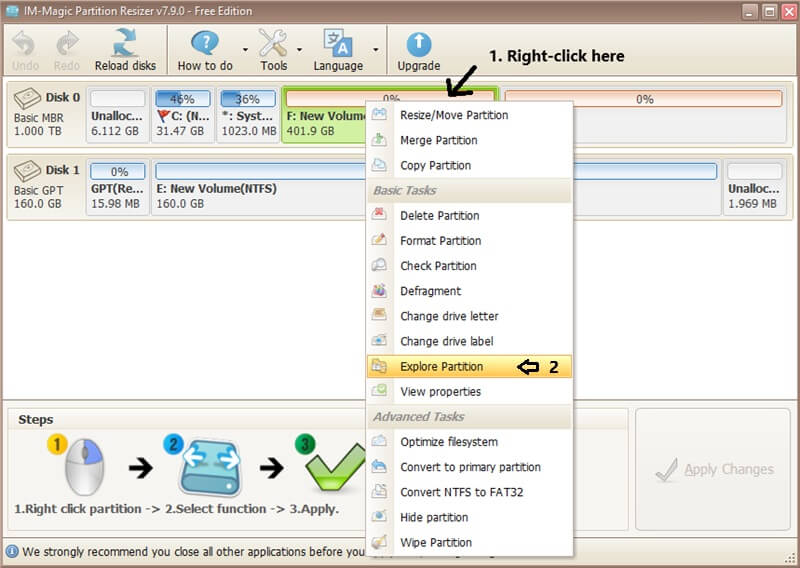
- In the main interface, locate the partition you want to explore. Partitions are shown with drive letters (C:, D:, E:) and size information.
- Right-click on the desired partition. A context menu will appear.
- From the menu, select “Explore Partition”.
📁 Part 3: Browsing Files and Folders Inside a Partition
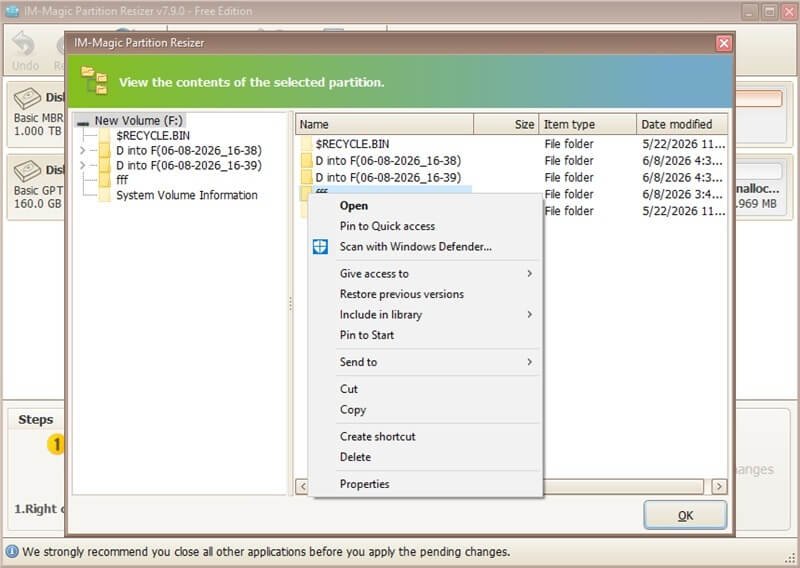
Once you click “Explore”, a new window opens – this is the built-in partition explorer. It works like a lightweight file manager.
- View folder tree: On the left side, you'll see a folder tree of the entire partition. Click any folder to see its contents.
- See file details: On the right panel, you can view file names, sizes, types, and modification dates.
- Navigate: Double-click a folder to enter it, or click the “Up” button to go back.
- Identify large files: Sort by size to quickly find which files are taking up the most space. This helps you decide whether to resize the partition.
🖨️ Part 4: Exploring Different Types of Drives (HDD, SSD, SD Card, USB)
- Internal hard disk / SSD partitions: Right-click any partition (C:, D:, etc.) → Explore. You can browse Windows system folders, program files, or personal data.
- External USB drive: Connect the USB drive, launch IM-Magic, find its partition (usually one large partition), right-click → Explore. Quickly view all files on your flash drive.
- SD Card: Insert the SD card into a card reader, refresh the disk list in IM-Magic, right-click the SD card's partition → Explore. Check photos, videos, or documents directly inside the tool.
- Hidden or RAW partitions: Some partitions may not have a drive letter – you can still explore them if they contain a readable file system (NTFS/FAT32).
⚙️ Part 5: What You Can Do While Exploring
- Verify data before resizing: Planning to shrink a partition? Open the explorer and make sure there's enough free space and no critical files at the end of the partition.
- Check partition usage: You can see total used space and free space in the explorer status bar (if shown) or by hovering over the partition in the main window.
- Copy file/folder paths: Some versions allow you to right-click a file and copy its full path – useful for troubleshooting.
- Open files externally: The explorer does not open files directly (to avoid locking them), but you can note the location and open them in Windows File Explorer later.
🧠 Part 6: Troubleshooting – When Explore Doesn't Work
- “Explore” option is missing or disabled:
- Make sure the partition is formatted with a supported file system (NTFS, FAT32, FAT). RAW or unformatted partitions cannot be explored.
- Run the software as administrator – some partitions require elevated rights to browse.
- If the partition is hidden or encrypted (BitLocker), unlock it first via Windows before using IM-Magic.
- The explorer opens but shows no files/folders:
- The partition might be empty or contain system-protected files that are not visible. Try refreshing the view.
- Check if the partition has a drive letter assigned – sometimes drives without letters are still browsable, but it depends on the software version.
- Usually, if a partition does not show up in the list, your PC may be using it. Check in Disk Management to see which process or system is using that drive.
- Explore option works but partition seems corrupted: IM-Magic might still allow browsing partially damaged partitions, but we recommend running CHKDSK first.
📋 Part 7: Step-by-Step Example (Quick Walkthrough)
Let's walk through a real example: exploring a USB flash drive to see its contents before resizing.
- Connect your USB drive to the computer.
- Launch IM-Magic Partition Resizer (as administrator).
- In the disk map, find your USB drive – it will appear as “Removable Disk” with a drive letter, e.g., E:.
- Right-click the USB partition (the big colored bar).
- From the menu, choose “Explore Partition”.
- An explorer window pops up showing all folders on the USB drive. You can click through folders like “Documents”, “Photos”, etc.
- Notice the file sizes – this helps you understand how much data is actually on the drive.
- Close the explorer when done. Now you can confidently resize, format, or convert the partition, knowing exactly what is on it.
💬 Part 8: Frequently Asked Questions
- Can I copy files from the IM-Magic explorer? – No, the explorer is read-only. Use Windows File Explorer for copy/move operations.
- Does “Explore” work on SD cards and USB drives? – Yes, absolutely. As long as the drive is formatted with a supported file system (FAT32, NTFS, FAT).
- Why would I use this instead of Windows File Explorer? – Convenience. IM-Magic's explorer is built right into the partition management workflow. You don't need to switch between windows. It's especially useful when you are about to resize or format a partition and you want a quick last look.
- Can I explore a partition that has no drive letter? – In many cases, yes. Right-click the partition (even without a letter) and see if “Explore” is enabled. This helps identify hidden OEM partitions.
- Is there any risk to exploring a partition? – None. Since it's read-only, you cannot accidentally delete or change anything. It's 100% safe.