🧹 How to Wipe a Partition with IM-Magic Partition Resizer
Sometimes you don't just want to delete files — you want to make sure no one can ever recover them. The “Wipe Partition” feature in IM-Magic Partition Resizer overwrites all data on a partition, making it unrecoverable even with advanced tools. This short article explains the 5 wiping methods available, from fast to military-grade.
⚙️ How to Access the Wipe Feature
- Launch IM-Magic Partition Resizer (as administrator).
- Right-click the partition you want to wipe (e.g., D:, E:, or a USB/SD card partition).
- Select “Wipe Partition” from the context menu.
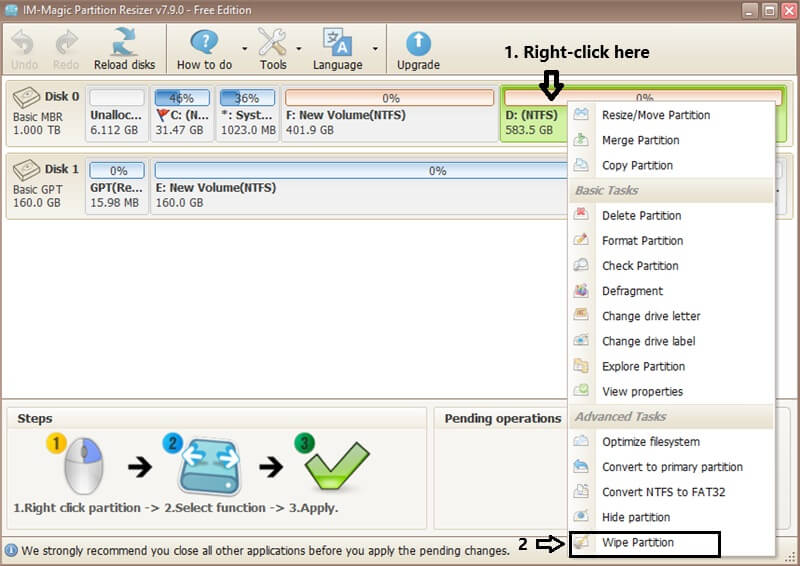
- A window will appear showing 5 different wiping methods. Choose one, then click Apply - OK to confirm.
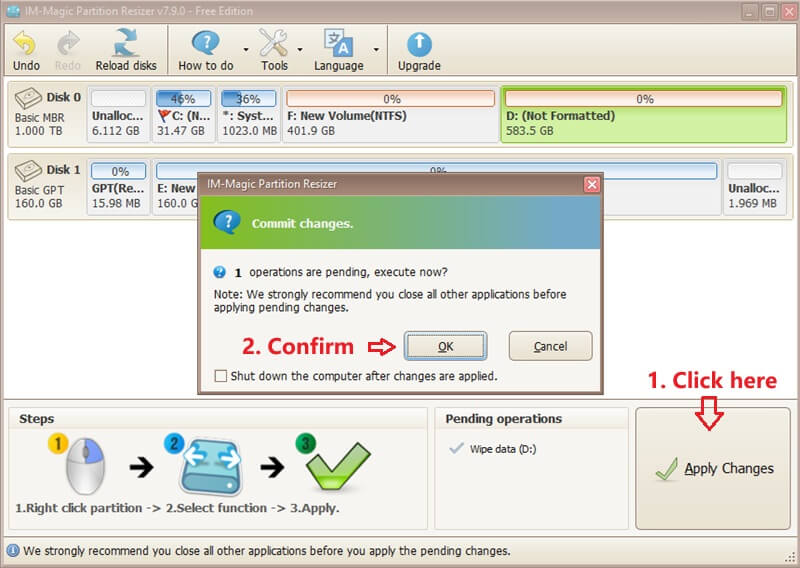
- Once it started, it will delete everything that cannot be retrieved.
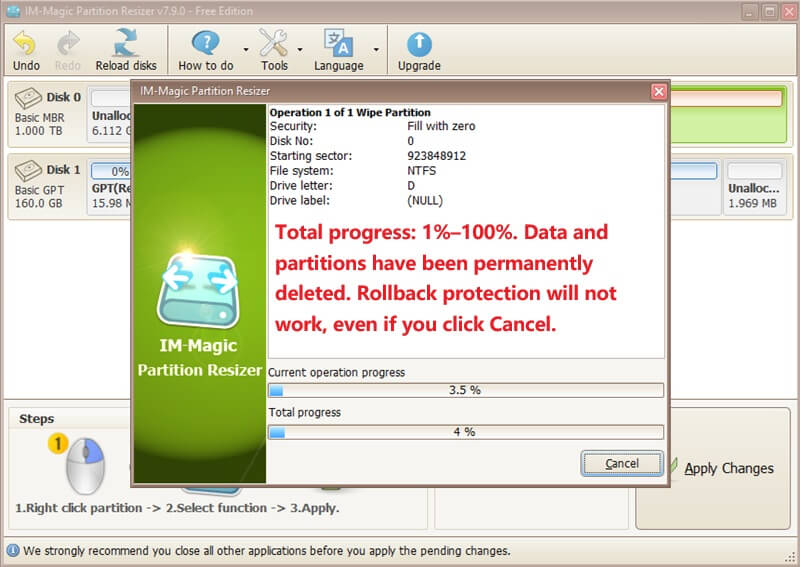
- Total progress: 1%–100%. Data and partitions have been permanently deleted. Rollback protection will not work, even if you click Cancel.
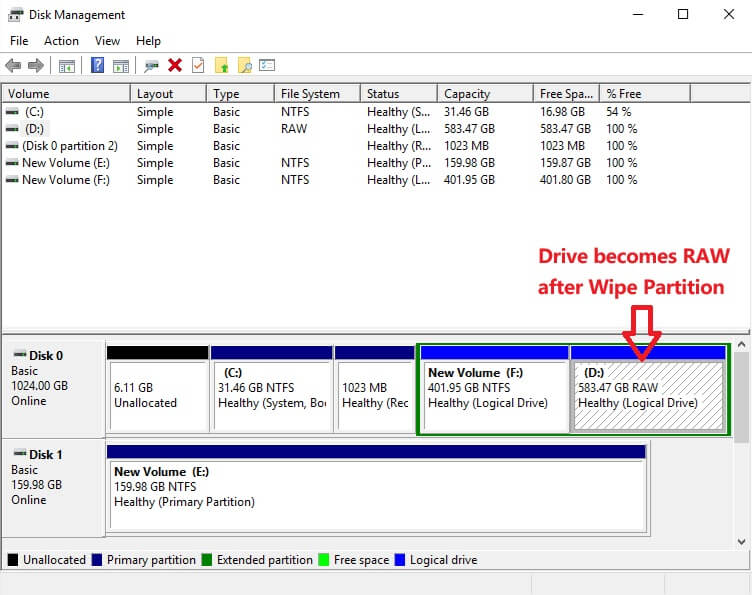
Once you click Apply and OK, the software will start wiping. No matter whether it finishes or not, in the end, the partition will become unformatted—RAW in Disk Management. You may right click it and choose 'Format' to start formatting it as a new partition.
📋 The 5 Wiping Methods Explained
IM-Magic Partition Resizer offers two categories: 3 simple (fast) methods and 2 secure (slow) methods based on DOD 5220 standards.
1. Fill sectors with Zero (0)
Writes a single pass of zeros to every sector on the partition. This is the fastest method. It prevents basic file recovery but may still be vulnerable to advanced forensic tools. Suitable for personal drives being repurposed.
2. Fill sectors with One (1)
Writes a single pass of ones to every sector. Same speed as zero-fill. Effectively erases data, but like zero-fill, it's a single-pass overwrite. Works great for everyday secure erasure.
3. Fill sectors with Zero & One (0 and 1 pattern)
Writes alternating patterns of zeros and ones (usually one pass). Slightly more thorough than a simple zero-only pass because it disrupts magnetic remnants better. Still fast.
4. DoD 5220.22-M (3 passes)
Follows the US Department of Defense wiping standard: Pass 1 – write zero; Pass 2 – write one; Pass 3 – write random character. Then verifies. This method is much slower (3 passes) but offers military-grade security for most classified data. Suitable for corporate or government use.
5. DoD 5220.28-STD (7 passes)
The most thorough method: 7 overwrite passes (complex pattern including zeros, ones, random bytes, and complements). This meets the strictest data destruction requirements. Extremely slow but guarantees that no trace of original data remains — even against laboratory-level magnetic force microscopy.
⚡ Simple Methods (0, 1, 0+1) – When to Use
- Recycling a personal hard drive or USB stick: A single pass with zero or 0+1 is enough to prevent software-based recovery.
- Fast wiping before selling an old computer: Use zero+one pattern for extra safety without waiting hours.
- Quickly wiping a partition to reinstall OS: Zero-fill is fast and effective for most home users.
🛡️ Slow Methods (DoD 5220.28-STD (7 passes)) – When to Use
- Wiping a company laptop or confidential customer data: Use DoD 5220.22-M (3 passes) – meets most industry compliance standards.
- Top secret / military or legal data destruction: Use DoD 5220.28-STD (7 passes) to ensure no residual data can be reconstructed.
- External drives that contained financial records or medical information: Always choose at least 3-pass DOD method.
📝 Step-by-Step Wipe Example
- Open IM-Magic Partition Resizer as administrator.
- Right-click the partition you want to destroy (example: old USB drive partition E:).
- Select “Wipe Partition”.
- In the pop-up, pick one of the 5 methods:
- 🔹 Zero fill – fastest, basic.
- 🔹 One fill – same speed.
- 🔹 Zero & One – better than single pattern.
- 🔹 DoD 5220.22-M (3 passes) – military grade (medium speed).
- 🔹 DoD 5220.28-STD (7 passes) – maximum security (very slow).
- Click OK. Then click the green “Apply” button on the toolbar.
- Confirm the pending operation. The wipe process starts.
- Once completed, the partition is completely empty and unrecoverable. You can now delete it, reformat it, or leave it as unallocated space.
💡 Quick Recommendation Guide
- For home users wiping a USB or old hard disk: Use Zero fill (method 1) or Zero & One (method 3) – fast and effective.
- For reselling a PC with personal data (banking, photos): Use DoD 5220.22-M (3 passes) for peace of mind.
- For maximum security / classified data: Use DoD 5220.28-STD (7 passes) — the gold standard.
- If you're in a hurry and don't need extreme security: Zero fill is your friend.
🧹 IM-Magic Partition Resizer – Wipe Partition feature with 5 methods: Zero, One, Zero+One (fast) | DOD 5220 3-pass and 7-pass (secure). Choose what fits your needs.
For Windows 11/10/8/7, dowload free software => Download for Win 11-XP [Free Software]
For Windows Server 2025-2003, Download free Demo => Download for Win Server [Trial]