📐 Resize / Move Partition in IM-Magic Partition Resizer – Complete Guide
Need to extend your C: drive, shrink a data partition, or rearrange disk layout? IM-Magic Partition Resizer lets you resize (shrink/extend) and move partitions without data loss. This short guide explains the Resize/Move Partition feature, including three critical facts: when a reboot is required for C: drive, the special case of EFI system partition moves, and how moving a partition really works.
- ✅ C: drive reboot rule: Most often, if the start sector of the C: drive has not been changed, it won't ask for a reboot even after being expanded. The operation completes immediately in Windows.
- ⚠️ EFI partition rule: When the EFI system partition (ESP) has been moved (its location on disk changes), it will ask for an OS reboot. This is required to update firmware boot references safely. (EFI partition is used on GPT disks. If your disk is MBR, you won't see any EFI partition.)
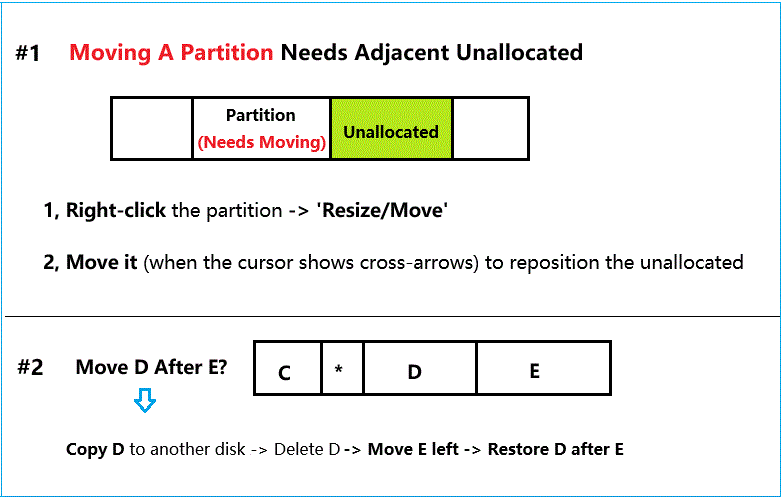
- 🚫 Moving a partition only works when there is adjacent unallocated space on the target side. You cannot drag a partition into thin air — unallocated space must already exist next to it. (Note: You can copy a partition to unallocated to change the partition order.)
- ✅ Rollback protection enabled. Process totally protected: During resizing or moving, all partitions and data benefit from rollback and power-off protection, ensuring 100% data safety — whether you shrink, extend, or move a volume. Everything remains safe until the task is successfully completed.
Basic Knowledge about Resizing and Moving
The software can shrink any partition without data loss. To expand one, you need adjacent unallocated space — if it's not adjacent, move partitions (starting with the one next to unallocated); if no unallocated space exists, shrink a volume; if no volume can be shrunk, upgrade to a larger disk using 'Migrate OS Wizard' or 'Copy Disk'. See the rules in the image below.
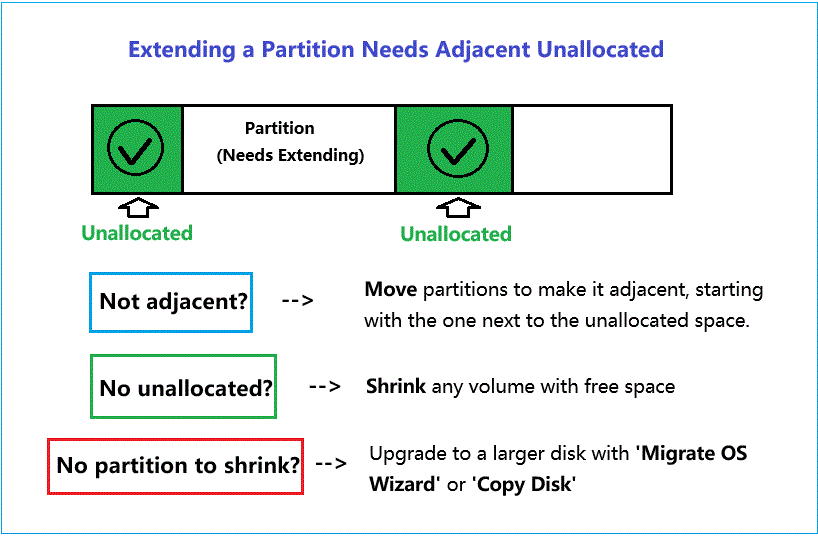
For moving a partition, it needs adjacent unallocated. If the unallocated is not adjacent, you have an option to copy the partition to unallocated.
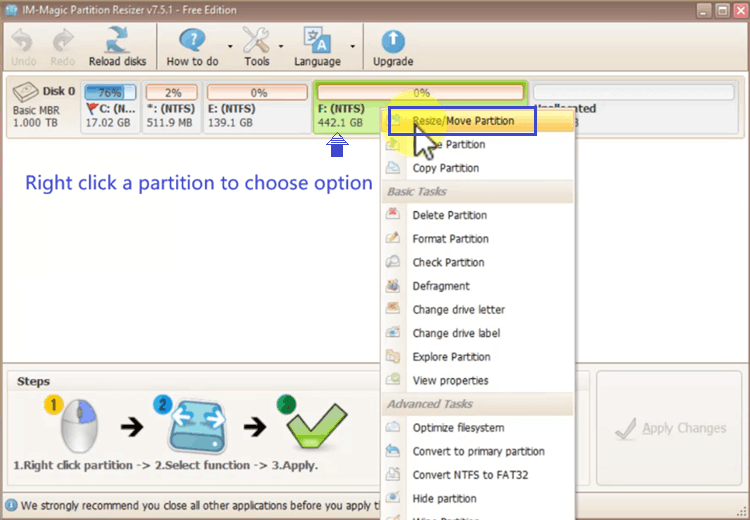
🖱️ How to Access Resize/Move
- Launch IM-Magic Partition Resizer (right-click → “Run as administrator”).
- Right-click the partition you want to resize or move → select “Resize/Move Partition”.
- A graphical slider appears. Drag handles or enter exact numbers to shrink or extend or move. (The following image shows how to shrink G drive by dragging its left border to create unallocated space at left-side of G as an example)
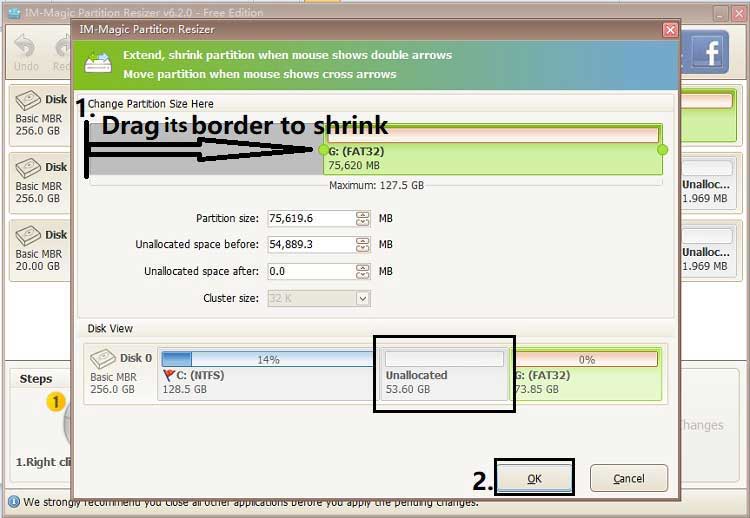
- Click OK → then click the green “Apply” button.
📏 Understanding the Interface and the Moving
- Left handle: Drag to shrink/extend from the left side.(Unallocated space is required at left if you want to drag its left border into unallocated space to add the space)
- Right handle: Drag to shrink/extend from the right side. (Drag its border in-side if you want to create unallocated space, or drag its border right to add right-side adjacent unallocated space)
- Cursor shows + drag the partition block: This moves the partition left or right. Works only when adjacent unallocated space exists. (When you right click a partition next to unallocated, choose 'Resize/Move', put your mouse on the partition, when the cursor shows cross arrows, you can drag and move it to reposition the unallocated.)
- Unallocated space: Shown as dark gray area. You can only extend/move into adjacent unallocated space.
📁 Common Use Cases (Step-by-Step)
- Situation: Unallocated space exists immediately to the right of C: drive.
- Steps: Right-click C: → Resize/Move → drag the right handle to the right into unallocated space → OK → Apply.
- Result: C: expands instantly. No reboot because the start sector of C: never changed.
- Situation: You have unallocated space to the left of the EFI partition, and you want to move the EFI partition left to merge space.
- Steps: Right-click EFI partition → Resize/Move → drag middle block left into unallocated space → OK → Apply.
- Result: IM-Magic Partition Resizer displays a message: "A reboot is required to move the EFI system partition. The operation will be performed before Windows starts." Click Yes → system restarts → move completes → OS boots normally.
- Wrong way: Select a partition and try to drag it when no unallocated space exists next to it → impossible.
- Correct way: First shrink a neighboring partition to create unallocated space next to the partition you want to move. Then right-click target partition → Resize/Move → drag the middle block left or right into that unallocated space → OK → Apply.
- Right-click C: → Resize/Move → drag the right handle left to shrink → unallocated space appears → create a new partition there.
- Right-click C, choose RESIZE/Move, shrink C drive right-side border to create unallocated space.
- Right click D or E, choose RESIZE/Move, add unallocated space → OK → Apply.
⚙️ Step-by-Step: Extend C: Without Reboot (Visual Walkthrough) Shrink E, move recovery, extend C
- Open IM-Magic Partition Resizer as administrator.
- Ensure there is unallocated space directly to the right of C: (if not, use a tool or shrink the next partition).
- Right-click C: drive → Resize/Move Partition.
- Drag the right handle to the right until it fills the unallocated space.
- Notice: the left handle (start sector) does NOT move. That's the key.
- Click OK → click Apply.
- The operation executes immediately in Windows. No reboot message appears.
- Open File Explorer → C: drive now shows increased capacity.
- The EFI partition is moved (always requires reboot).
- The start sector of the system partition (C:) is modified.
- System files are locked.
- Page file on the drive
Always allow the reboot and let the tool complete the operation in pre-OS mode.
Reboot Symbol: If a busy icon appears in the list of Pending Operations, a restart is required.
🚫 What Does NOT Work (Common Misunderstandings)
- Moving a partition without adjacent unallocated space: The tool will not allow it. You cannot “push” partitions; you must create unallocated space first.
- Extending a partition into non-adjacent unallocated space: You cannot skip over other partitions. Use the “Move” function to relocate partitions and make unallocated space adjacent, then extend.
- Shrinking a partition beyond its used space: The slider shows the minimum possible size based on actual data location. Defragment the drive first for maximum shrinkability.
- Cannot move 'Not Formatted' partition: The software cannot resize or move any partition if it shows unformatted. In this case, backup your disk first, and then delete the unformatted partition, create a new one. You may resize or move the destination partition before creating a new one. (This happens to a lot of Recovery partition in Windows Server 2022, Server 2025.)
💡 Critical Rule 1: When Does C: Drive Require a Reboot?
Many users assume that extending the system partition (C:) always forces a reboot. That is not true. IM-Magic Partition Resizer uses advanced online resizing technology.
- No reboot needed (most common case): If you extend C: drive to the right (i.e., adding unallocated space that is located immediately after C:) and the start sector of C: remains unchanged, the tool performs the expansion online without any reboot. You see the progress directly in Windows.
- Reboot required (rare cases): If you need to move the start sector of C: leftward (shrinking from the left, or moving the entire partition), or if system files are locked at critical positions, a reboot into pre-OS mode may be required.
- Simple rule of thumb: Most often, when you expand C: by grabbing the right handle and pulling it into unallocated space that sits directly to the right, the start sector does not change → no reboot, instant expansion.
- Reboot symbol: A reboot is required if a busy mark appears in the pending operations list. If no such mark appears, no reboot is needed.
🖥️ Critical Rule 2: Moving EFI System Partition Always Requires an OS Reboot
The EFI system partition (ESP) is a small FAT32 partition that contains boot loaders for UEFI-based systems. Because it's critical for startup, any operation that moves its physical location on the disk will trigger a mandatory reboot.
- Why? The firmware (UEFI) stores references to the partition's location. Moving the EFI partition without a reboot could make the system unbootable. IM-Magic Partition Resizer safely handles this by scheduling the move during the next OS restart.
- What triggers it? If you use the Resize/Move feature on the EFI partition and drag the middle block (changing its start sector), the software will prompt: "A system reboot is required to complete this operation."
- What if I only extend/shrink the EFI partition without moving it? Resizing (changing size without changing location) may or may not require a reboot depending on locked files, but moving always does.
📦 Critical Rule 3: Moving a Partition Requires Adjacent Unallocated Space
The “Move” feature (dragging the middle of the partition block) is not magic. It simply relocates the entire partition left or right, but it must have existing unallocated space adjacent to the target side.
- Moving right: You need unallocated space immediately to the right of the partition. Drag the partition right into that space.
- Moving left: You need unallocated space immediately to the left of the partition. Drag the partition left into that space.
- If there is no adjacent unallocated space, dragging the partition block does nothing. The tool will show an error or simply not allow the move.
💡 Critical Rule 4: Unformatted Partition is Not Supported
IM-Magic Partition Resizer cannot resize or move unformatted partition, including the Not Formatted recovery partition. This happens to some Windows Server 2022 users. To fix the issue,
- Backup: If one of your partition displays not formatted, backup the full disk first. If it's the OS disk, use 'Migrate OS Wizard', if it's a data disk, use 'Copy Disk'.
- Delete: Once there is backup, delete the unformatted partition.
- Resize or Move: Once the blocker partition has been deleted, you may continue with the resize or move.
- Create New Partition: Once the destination partition has been expanded or moved, you can create a new partition as your need.
📋 Quick Reference: Reboot or No Reboot?
- No reboot ✅ – Extending C: to the right (start sector unchanged), online expansions of data partitions, shrinking non-system partitions.
- Reboot required 🔄 – Moving EFI system partition (ALWAYS), moving C: drive left/right (changing start sector), extending C: when complex relocation is involved, or when Windows locks the drive.
- EFI special rule: Any move operation on the EFI partition (dragging the middle block) will trigger an OS reboot. This is by design and completely normal.
- Rule of thumb for C: drive: If you only use the right handle of C: drive and never touch the left side, you will likely enjoy a reboot-free experience.
- C: drive expansion most often does NOT require a reboot as long as the start sector remains unchanged (i.e., you only extend to the right).
- Moving the EFI system partition ALWAYS asks for an OS reboot – required for safe boot management.
- Moving any partition is only possible when adjacent unallocated space exists on the side you want to move toward. Create unallocated space by shrinking a neighbor first.
- Reboot symbol - A reboot is required if a busy mark appears in the pending operations list. If no such mark appears, no reboot is needed.
For Windows 11/10/8/7, dowload Partition Resizer Free => Download for Win 11-XP [100% Free]
For Windows Server 2025-2003, download Partition Resizer Server => Download for Win Server [Trial]