📀 IM-Magic Partition Resizer: Format Any Partition + NTFS→FAT32 (No Data Loss)
This complete guide helps you format a partition, hard disk partition, SD card, or USB flash drive using IM-Magic Partition Resizer. The tool supports FAT, FAT32, and NTFS formatting. Power tip: IM-Magic Partition Resizer can also convert NTFS to FAT32 on an SD card or USB drive without losing any data — perfect for older devices that require FAT32.
If your SD card or USB drive is currently NTFS but you need FAT32 for compatibility (game consoles, car stereos, cameras, old TVs), normally formatting would erase everything. IM-Magic Partition Resizer can directly convert the file system while keeping all files intact! See Part 5 for step-by-step instructions.
Watch this video tutorial on how to format NTFS/exFAT/RAW to FAT32, including converting NTFS to FAT32 without data loss:
For Windows 11/10/8/7 => Download Partition Resizer Free [100% Free]
For Windows Server 2025-2003 => Download Partition Resizer Server [Trial]
🔧 Part 1: Download & Install IM-Magic Partition Resizer
- Download Partition Resizer Free
- Run the installer and follow the instructions. Launch the program as administrator (right-click → "Run as administrator") for full disk access.
- The main interface displays all disks (internal HDD/SSD, SD cards, USB flash drives) and their partitions.
💿 Part 2: Format an Existing Partition (Hard Disk / SSD) or a Not Formatted Drive
- Step 1: Open IM-Magic Partition Resizer. Locate the partition you want to format (e.g., D:, E:), or the unformatted drive.
- Step 2: Right-click the target partition, an existing drive D, F or a Not Formatted drive, and select "Format Partition".
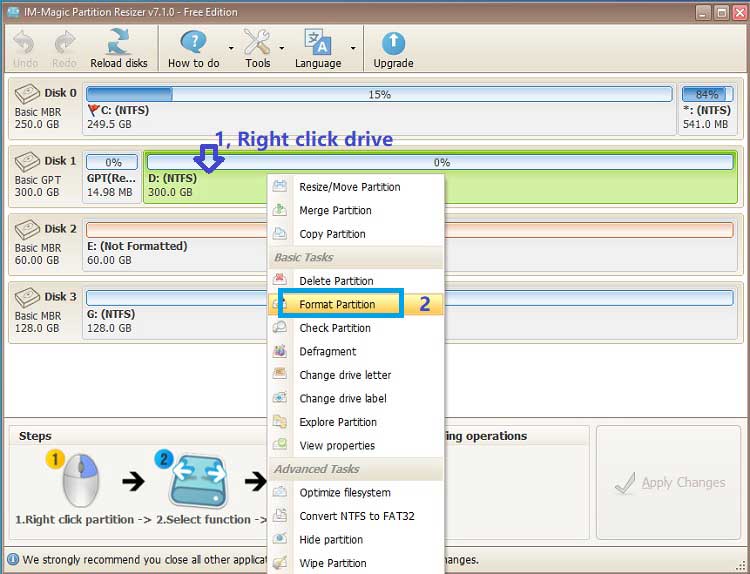
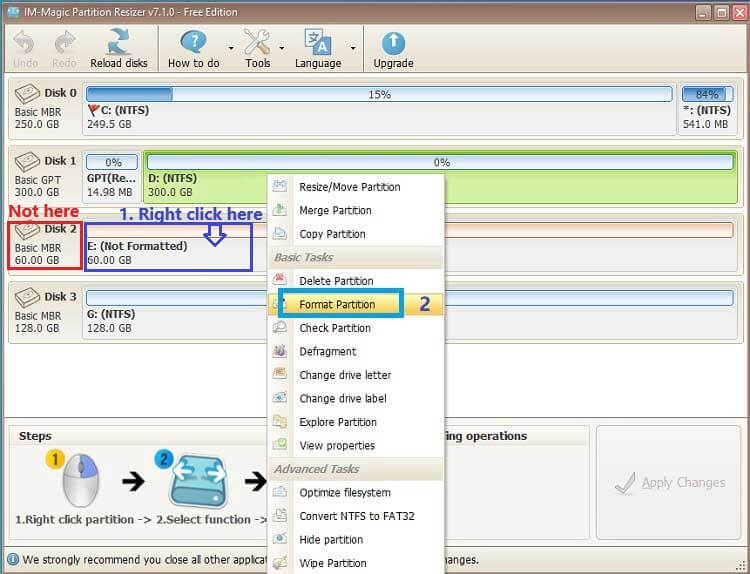
- Step 3: In the format window, choose your file system (FAT, FAT32, or NTFS – exFAT is not present):
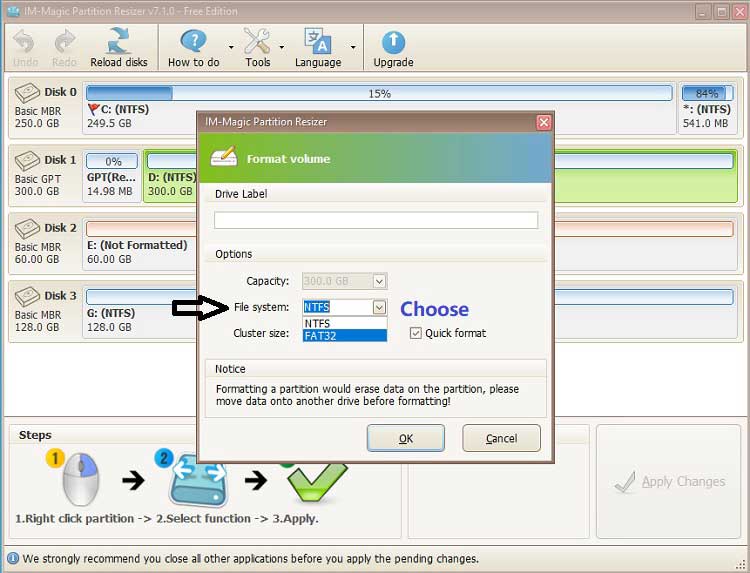
- NTFS – best for internal hard disks (Windows, large files, no 4GB limit).
- FAT32 – great for cross-compatibility (cameras, game consoles, older devices), max file size 4GB.
- FAT (FAT16) – for very small legacy volumes.
- Step 4: Set cluster size (default is fine) and optionally type a volume label.
- Step 5: Click "OK", then click the "Apply" button (green checkmark top left) and confirm.
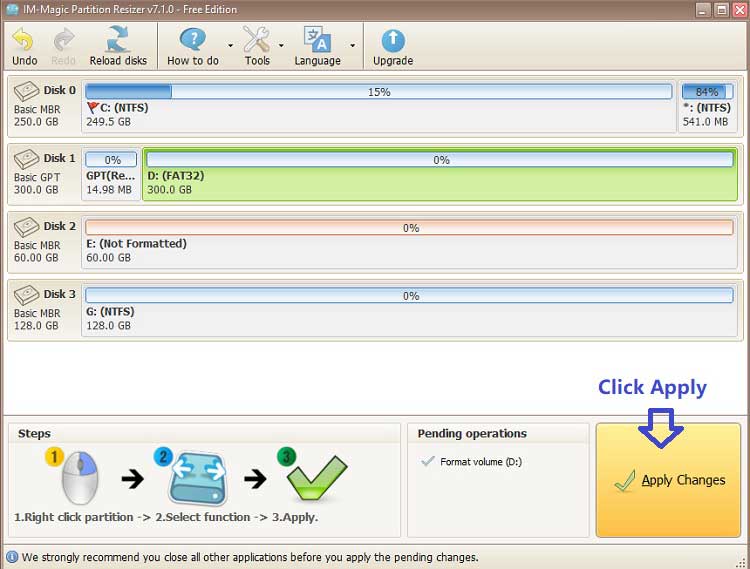
- Step 6: Formatting completes. Your partition is now ready.
🖴 Part 3: Format a Hard Disk Partition (Internal Drive)
- Launch IM-Magic Partition Resizer, right-click the target partition on any hard disk.
- Select "Format Partition" → choose NTFS (recommended).
- Enter a label (e.g., "Storage"), click OK, then Apply.
- Done. To format an entire hard disk, format each partition individually or delete/recreate partitions.
📸 Part 4: Format an SD Card (FAT32 or NTFS)
- Step 1: Insert the SD card into your card reader. Ensure Windows detects it.
- Step 2: Open IM-Magic Partition Resizer. Locate the SD card partition (usually labeled "Removable"). Right-click → "Format Partition".
- Step 3: Choose file system:
- FAT32 – works with most cameras, phones, and game consoles.
- NTFS – possible but some older devices may not support it.
- Step 4: Set a volume label (e.g., "CameraSD"), click OK → Apply → Confirm.
- Step 5: SD card formatting is complete. Tip: If your SD card is NTFS but you need FAT32, see Part 5 below – no data loss, no formatting needed!
🔌 Part 5: 【Tip】Convert NTFS to FAT32 Without Losing Data (USB / SD Card)
This is a unique feature of IM-Magic Partition Resizer! Normally, converting file systems requires formatting and erases all data. This tool directly converts while keeping every file intact.
- When to use: Your USB drive or SD card is NTFS, but you need FAT32 for compatibility with game consoles, car stereos, old cameras, or TVs – especially useful when you cannot back up your data.
- Step 1: Plug in your USB drive / SD card and open IM-Magic Partition Resizer.
- Step 2: Right-click the USB or SD card partition. In the context menu, select "Convert to FAT32" (or "NTFS→FAT32" depending on version).
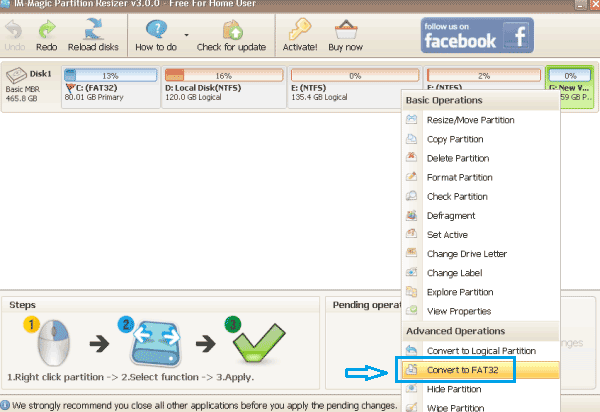
- Step 3: A confirmation window appears. Click "OK".
- Step 4: Click the "Apply" button (green checkmark) on the toolbar. Confirm the pending operation.
- Step 5: The conversion takes a few seconds to a few minutes (depending on data size). Once finished, your USB/SD card is now FAT32 – all files remain perfectly intact and accessible!
Read more details here: How to convert NTFS to FAT32 without losing data
⚠️ Part 6: Important Limitation – No exFAT Formatting
- Open "This PC" → Right-click the drive → "Format" → Choose "exFAT" → Start.
- Or use Disk Management / diskpart command.
🧠 Part 7: File System Quick Reference
- NTFS (supported ✅) → Internal hard drives, external HDDs (Windows-only), large files, security permissions.
- FAT32 (supported ✅) → Game consoles, old TVs, cameras, car stereos; max file size 4GB.
- exFAT (NOT supported ❌) → Modern devices, cross-platform (Windows+macOS), large USB drives, files >4GB. Use Windows format tool.
📋 Part 8: Summary – Format vs. Convert
- Format (erases all data): Right-click partition → Format Partition → Choose FAT32/NTFS → Apply.
- NTFS → FAT32 conversion (keeps all data): Right-click partition → Convert to FAT32 → Apply. Key power tip!
- Need exFAT: Use Windows built-in format tool (not possible with IM-Magic).
🔍 Part 9: Frequently Asked Questions
- Q: Why is exFAT missing from the format menu? – A: IM-Magic Partition Resizer does not support formatting to exFAT. Use Windows Disk Management instead.
- Q: Will "Convert to FAT32" delete my files? – A: Absolutely not! This is the tool's special feature – it converts NTFS to FAT32 while preserving every file and folder intact.
- Q: Can I convert my system drive (C:) from NTFS to FAT32? – A: Technically possible but not recommended. Use the bootable PE edition of IM-Magic for system drives. Also, Windows requires NTFS for system partitions – FAT32 for boot drive is not practical.
- Q: My SD card / USB drive is not detected in the software. – A: Run the program as administrator, then click "Refresh" or re-insert the device.
- Q: Can I convert a 128GB NTFS drive to FAT32? – A: Yes! Windows limits FAT32 to 32GB, but IM-Magic Partition Resizer has no such limit. You can convert large drives to FAT32 successfully using the "Convert to FAT32" option.
- Q: Does the conversion work for SD cards that are write-protected? – A: No. Remove physical write protection (slide the lock on the SD card adapter) before attempting conversion.
For Windows 11/10/8/7, dowload free software => Download for Win 11-XP [Free Software]
For Windows Server 2025-2003, Download free Demo => Download for Win Server [Trial]