How to Tutorial & Support Center
Welcome to the IM-Magic How-To Center. Here, you can find a guide to walk you through the processes of shrinking a large partition, moving free disk space, and reallocating it to another small volume, such as the system drive, and expanding it. You can perform repartitioning on any drive without data loss.
Feel free to contact support@resize-c.com if you still have questions regarding the software's usage after going through all our video/text tutorials.
How to Use Partition Resizer Examples

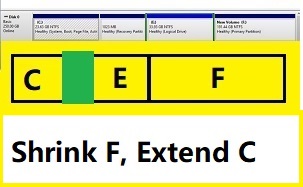 Shrink F, move E and recovery, extend C
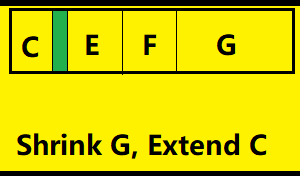 Shrink G, Extend C (Move F E Recovery)
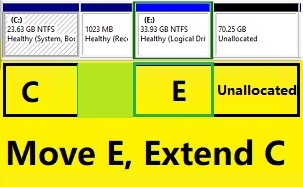 Move E, Recovery, extend C
 Merge C and E/D drives without data loss
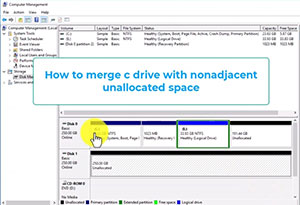 Merge C drive with non-adjacent space
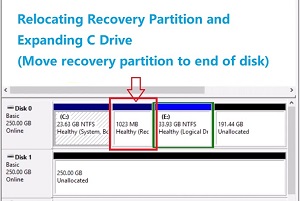 Move recovery partition and expand C drive
 Shrink Partition: Shrink C, create partition Server 2019
 Delete Partition: How to delete the recovery partition
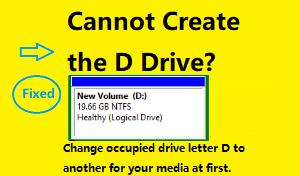 Create Partition: Fix issues with creating D drive
 Shrink C drive and create D drive: Two free methods
 C1. Convert to GPT: How to convert MBR to GPT without data loss
 C2. Convert to FAT32: How to convert to FAT32 without data loss
 D1. Clone Disk to Larger: Upgrade or migrate to a larger HDD/SSD
 D2. Clone Disk to Smaller: How to clone to a smaller HDD/SSD
 D3. Clone OS Disk: Clone from MBR to GPT
More video guide here https://www.resize-c.com/video/
Image Guide
Resize Partition
How to resize partition without losing data on Windows 11
Extend /Shrink/Move Partition
How to shrink partition and extend C drive
Extend volume greyed out server fix
Copy/Clone disk, or partition
How to clone disk to a larger disk
Clone disk to a smaller SSD/HDD
Delete/Create Partition
How to delete partition on windows 10 with freeware
Merge Partition
Merge unallocated space to system partition in Windows
Merge non-adjacent partition Windows
Low Disk Space Problem
GPT/MBR/FAT32/Primary Converter
Convert MBR to GPT on Windows Server
Convert MBR to GPT on Windows 11/10/7
Convert SD/USB over 32GB FAT32