How to Tutorial & Support Center
Welcome to the IM-Magic How-To Center. Here, you can find guides that walk you through the process of shrinking a large partition, moving free disk space, reallocating it to another smaller volume, such as the system drive, and expanding the volume. You can repartition any drive without losing data.
For licensed users, contact support@resize-c.com if you still have questions about using the software after going through all our video/text tutorials, or if you encounter any technical problems.
For free users, contact sales@resize-c.com for a tailored guide. Please provide a screenshot of the Disk Management window along with your requirements so we can review your current disk configuration and provide more accurate guidance. To open Disk Management, right-click the Start icon and select Disk Management.
⚠ We strongly recommend using 'Copy Disk' or 'Copy Partition' to back up your disk or partition before making changes, even though Partition Resizer offers rollback and power-off protection against unexpected crashes. Additionally, please use the 'Defragment' and 'Optimize File System' features to ensure your disk is in good condition.
Note: Please be aware that formatting or wiping a partition, wiping data from a disk, or copying Disk 1 to Disk 2 (if not empty) can result in data loss. When copying Disk 1 to Disk 2, make sure Disk 2 is an empty disk, or all existing data on Disk 2 will be deleted.
How to Use Partition Resizer (Video Examples)

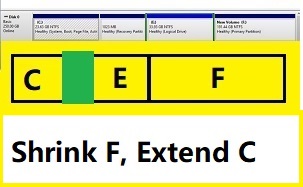 Shrink F, move E and recovery, extend C
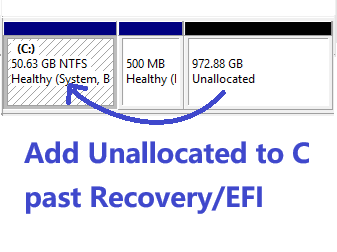 C Recovery/EFI Unallocated: Expand C
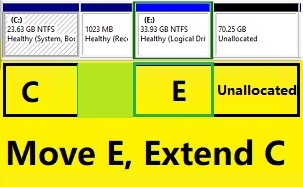 Add non-contiguous unallocated space to C
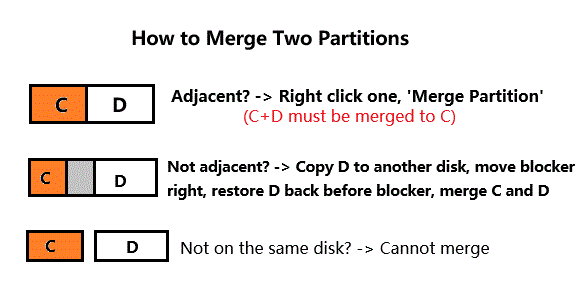
 Merge C and E/D drives without data loss
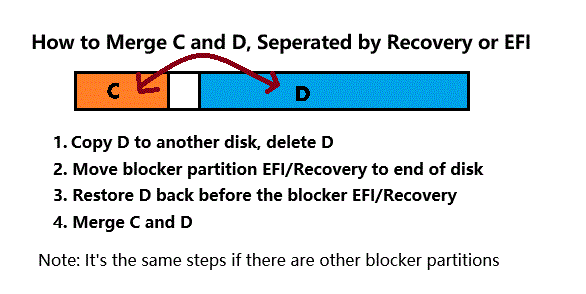
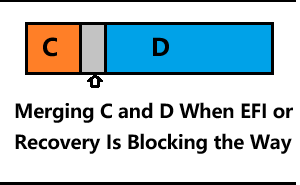 Merge C D seperated by EFI/Recovery
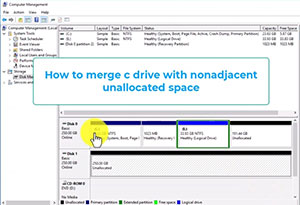 Merge C drive with non-adjacent space
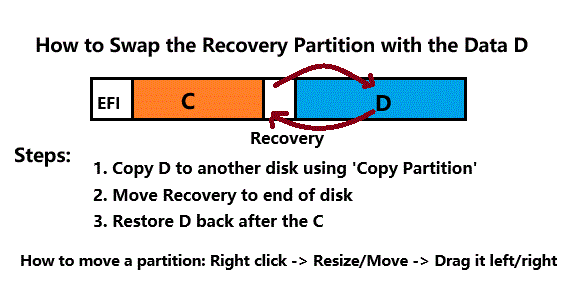
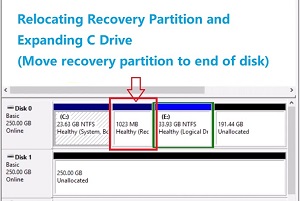 Move recovery partition and expand C drive
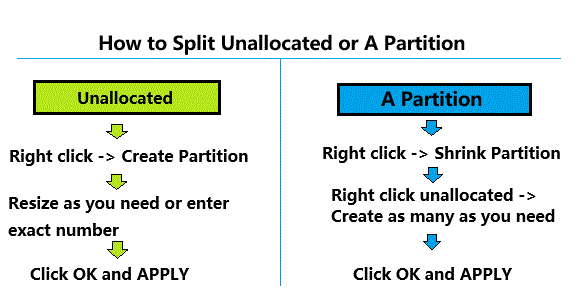
 Shrink Partition: Shrink C, create partition Win Server
 Delete Partition: How to delete the recovery partition
 Create Partition: Fix issues with creating D drive
 Shrink C drive and create D drive: Two free methods
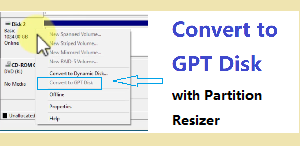 C1. Convert MBR to GPT [Do Not Convert RAID]
 C2. Convert to FAT32: How to convert to FAT32 without data loss
 D1. Clone Disk to Larger: Upgrade or migrate to a larger HDD/SSD
 D2. Clone Disk to Smaller: How to clone to a smaller HDD/SSD
 D3. Clone OS Disk: Clone from MBR to GPT (small disk to over 2TB disk)
Visit more here https://www.resize-c.com/video/ (Resize, move, extend, merge, convert, copy, migrate OS etc.)
Partition Resizer Basic Instructions
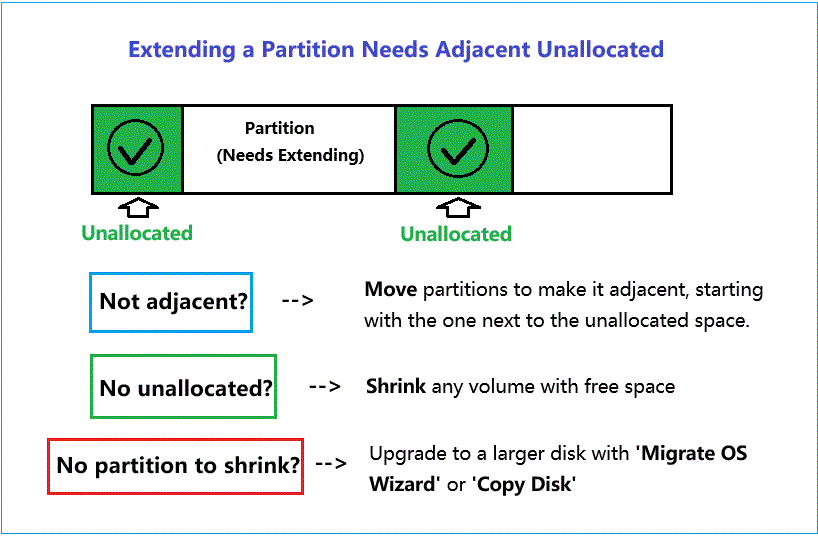
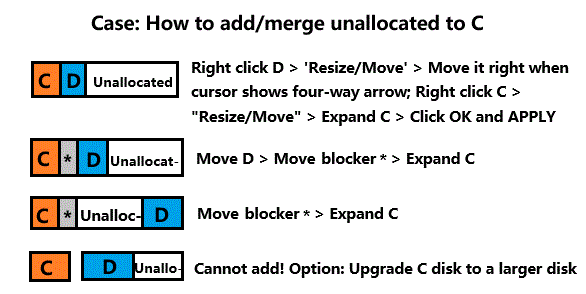
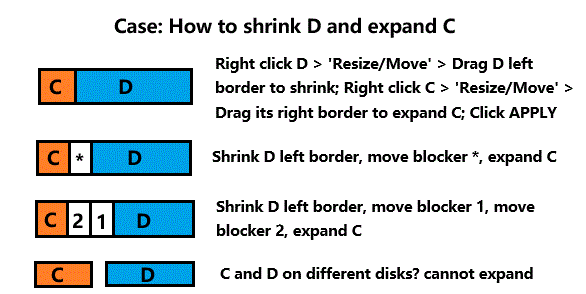
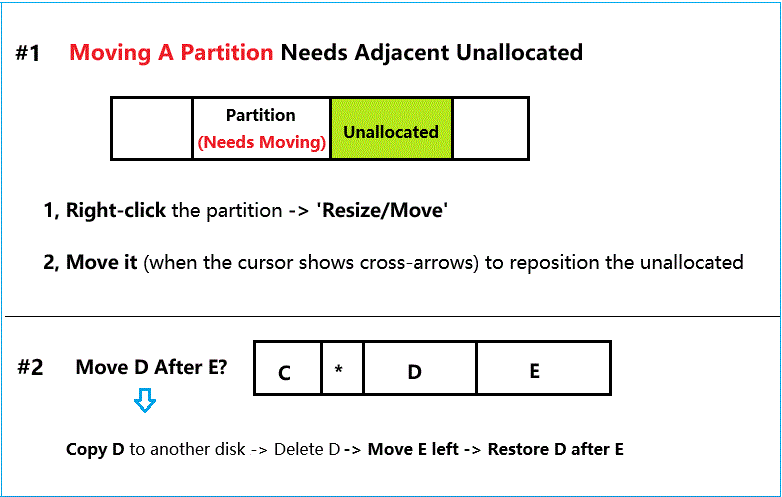

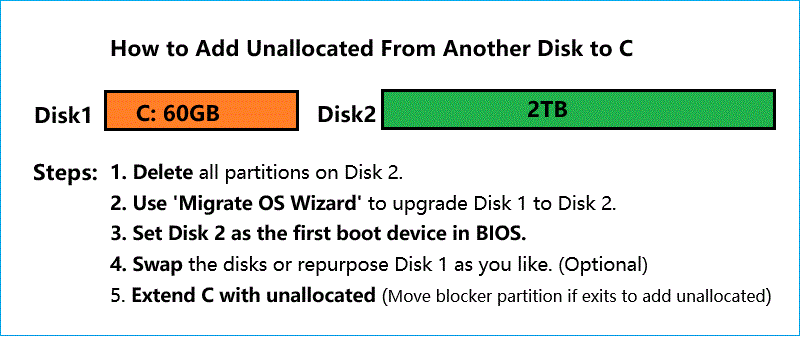
More Instructions
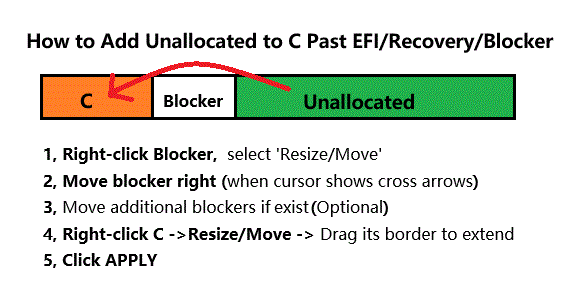

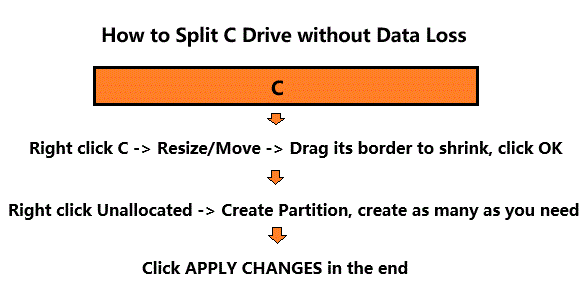
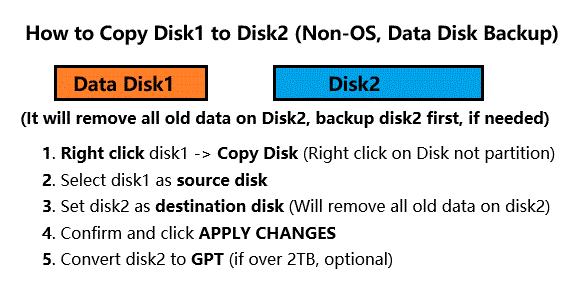
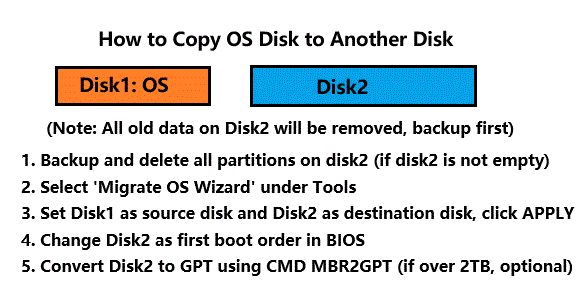
Online Guide
Error Code & Fixes
You may see some of the following error codes if your disk is damaged, contains errors, or if Windows has a limitation.
Error Code 4642; Error code 4652; Error code 4653; Error code 3703
#1 Error code 4642: Error Text: ERR NTFS TOO MANY FRAGMENTS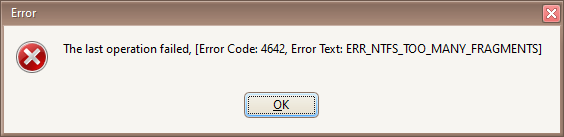
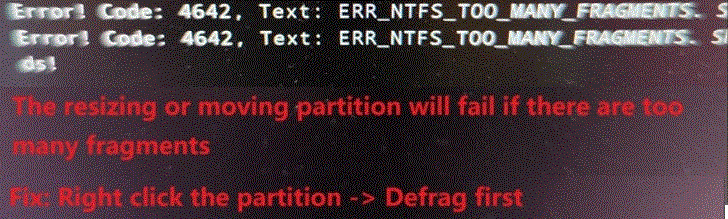
Fix: Right-click the partition, select 'Defragment', defrag the partition first, and then redo the previous operations. (If not working, try using <Optimize File System> function.)
Analysis: This issue often occurs when resizing or moving etc. a fragmented volume like the C drive. Use Partition Resizer to defrag the partition first or optimize file system.
#2 Error code 4652: Error Text ERR_NTFS_CPY_FILE
Fix: Right-click the partition, select 'Optimize File System', repair the damaged file system first, and then redo the previous operations. If it does not show up or won't work, use 'CHKDSK' command provided by Windows to check and repair the partition, and then redo the previous operations.
Analysis: This issue often occurs when resizing or moving a partition that has file system errors. Repair the errors with Partition Resizer 'Optimize File System' or Windows CHKDSK first.
#3 [Error code 4653, Error Text ERR_NTFS_COPY_MFT_FILE]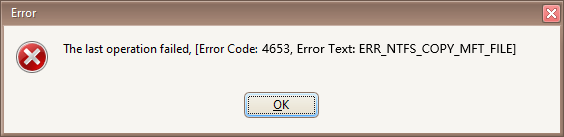
Fix: Use 'CHKDSK' command provided by Windows to check and repair the partition, and then redo the previous operations.
Analysis: The disk may contain logical errors. Repair the errors with Partition Resizer 'Optimize File System' or Windows CHKDSK first.
#4 [Error code 3703, Error Code : 3703,ErrorText:ERR_WRITE_SECTOR
Fix: Use 'CHKDSK' command provided by Windows to check and repair the partition, and then redo the previous operations.
Analysis: The disk has a bad sector, and this bad sector happens to be in a critical position and cannot be skipped.. Repair the errors with Partition Resizer 'Defragment' or Windows CHKDSK first.
More Articles
Resize Partition
How to resize move partition without losing data
Free resize C drive Windows 10
How to resize system partition
Extend /Shrink/Move Partition
How to shrink partition and extend C drive
Extend volume greyed out server fix
Copy/Clone disk, or partition
How to clone disk to a larger disk
Clone disk to a smaller SSD/HDD
Delete/Create Partition
How to delete partition on windows 10 with freeware
Merge Partition
Merge unallocated space to system partition in Windows
Merge non-adjacent partition Windows
Low Disk Space Problem
GPT/MBR/FAT32/Primary/Basic Converter
Convert MBR to GPT on Windows Server
Convert MBR to GPT on Windows 11/10/7
Convert SD/USB over 32GB FAT32